<?xml version="1.0" encoding="utf-8"?>
<feed xmlns="http://www.w3.org/2005/Atom">
  <title>Wayen</title>
  
  
  <link href="https://www.xml.wiki/atom.xml" rel="self"/>
  
  <link href="https://www.xml.wiki/"/>
  <updated>2024-03-08T13:47:23.099Z</updated>
  <id>https://www.xml.wiki/</id>
  
  <author>
    <name>wayen</name>
    
  </author>
  
  <generator uri="https://hexo.io/">Hexo</generator>
  
  <entry>
    <title>白嫖Gemini_API搭建个人AI助理</title>
    <link href="https://www.xml.wiki/p/24308/"/>
    <id>https://www.xml.wiki/p/24308/</id>
    <published>2024-03-08T12:19:12.000Z</published>
    <updated>2024-03-08T13:47:23.099Z</updated>
    
    <content type="html"><![CDATA[<h2 id="说明"><a href="#说明" class="headerlink" title="说明"></a>说明</h2><p>本次搭建过程分为两步，第一步获取Gemini_API_Key，第二步搭建适用Key的程序，不考虑Key泄露第二步完全可以省略。<br>示例: <a href="https://chat.xml.wiki/#/auth" rel="external nofollow noreferrer">https://chat.xml.wiki</a> 访问码: <code>xml.wiki</code>（输入访问码即可直接试用）</p><h2 id="Gemini-API-Key"><a href="#Gemini-API-Key" class="headerlink" title="Gemini_API_Key"></a>Gemini_API_Key</h2><ul><li>打开<a href="https://makersuite.google.com/" rel="external nofollow noreferrer">https://makersuite.google.com</a>，用 Google 账号登录</li><li>点击左侧<code>Get API Key</code>-&gt;<code>Create API key in new project</code>保存好key即可</li></ul><h2 id="ChatGPT-Next-Web"><a href="#ChatGPT-Next-Web" class="headerlink" title="ChatGPT-Next-Web"></a>ChatGPT-Next-Web</h2><p>有许多程序可以使用Gemini_API_Key，在此只介绍ChatGPT-Next-Web的搭建。事实上你也可以直接使用别人搭建好的，在不输入访问码时将自己的Key填入设置即可。ChatGPT-Next-Web可以使用Vercel、Docker和CloudflarePages三种不同的方式搭建，见<a href="https://github.com/ChatGPTNextWeb/ChatGPT-Next-Web/blob/main/README_CN.md" rel="external nofollow noreferrer">官方教程</a>，本节复述<a href="https://github.com/ChatGPTNextWeb/ChatGPT-Next-Web/blob/main/docs/cloudflare-pages-cn.md" rel="external nofollow noreferrer">CloudflarePages搭建教程</a>。ChatGPT-Next-Web也提供了桌面版本，<a href="https://github.com/ChatGPTNextWeb/ChatGPT-Next-Web/releases" rel="external nofollow noreferrer">下载</a>点击安装即可使用。</p><ul><li>打开<a href="https://dash.cloudflare.com/" rel="external nofollow noreferrer">https://dash.cloudflare.com</a>，点击左侧<code>Workers和Pages</code>下的<code>概述</code></li><li>点击<code>创建应用程序</code>后点击<code>Pages</code>页<code>连接到Git</code></li><li>链接你的Github账号，选择你Fork的项目后<code>开始设置</code></li><li>项目名称和分支一般默认即可，其他未提及项默认即可</li><li>框架预设选择<code>Next.js</code>，构建命令填写<code>npx @cloudflare/next-on-pages@1.5.0</code></li><li>点开<code>环境变量（高级）</code>，挨个复制以下内容<figure class="highlight plaintext"><table><tr><td class="gutter"><pre><span class="line">1</span><br><span class="line">2</span><br><span class="line">3</span><br><span class="line">4</span><br><span class="line">5</span><br><span class="line">6</span><br><span class="line">7</span><br></pre></td><td class="code"><pre><span class="line">CODE = xml.wiki    #访问码，即登录使用的密码</span><br><span class="line">CUSTOM_MODELS = -all,+gemini-pro    #选择使用的模型</span><br><span class="line">GOOGLE_API_KEY = ******************    #Gemini_API_Key</span><br><span class="line">NEXT_TELEMETRY_DISABLE = 1</span><br><span class="line">NODE_VERSION = 20.1</span><br><span class="line">PHP_VERSION = 7.4</span><br><span class="line">YARN_VERSION = 1.22.19</span><br></pre></td></tr></table></figure></li><li>点击<code>保存并部署</code>后立即取消部署</li><li>来到你部署的这个项目的<code>设置</code>-&gt;<code>函数</code>-&gt;<code>兼容性标志</code></li><li>分别在<code>配置生产兼容性标志</code>和<code>配置预览兼容性标志</code>两项中填写<code>nodejs_compat</code></li><li>点击<code>部署</code>选择重新部署即可，等待部署完成即可访问</li></ul>]]></content>
    
    
    <summary type="html">借助Google免费提供的Gemini API Key和ChatGPT-Next-Web来建立个人AI助理。示例: https://chat.xml.wiki 访问码: xml.wiki</summary>


    <category term="实用教程" scheme="https://www.xml.wiki/categories/%E5%AE%9E%E7%94%A8%E6%95%99%E7%A8%8B/"/>
    
    
    <category term="Gemini" scheme="https://www.xml.wiki/tags/Gemini/"/>
    
    <category term="ChatGPT" scheme="https://www.xml.wiki/tags/ChatGPT/"/>
    
    <category term="AI" scheme="https://www.xml.wiki/tags/AI/"/>
    
  </entry>
  
  <entry>
    <title>一键脚本自动优选Cloudflare_IP解析到免费域名下</title>
    <link href="https://www.xml.wiki/p/24112/"/>
    <id>https://www.xml.wiki/p/24112/</id>
    <published>2024-01-11T17:40:15.000Z</published>
    <updated>2024-02-26T16:55:27.585Z</updated>
    
    <content type="html"><![CDATA[<h2 id="说明"><a href="#说明" class="headerlink" title="说明"></a>说明</h2><p>  之前有人免费提供解析Cloudflare_IP的域名，但很快就被DNS污染了，因此此教程适合自己使用不建议分享。实现的原理很简单，第一使用CloudflareSpeedTest程序进行测速，选出质量高的IP地址；第二使用免费ddns将域名解析到优选的IP；第三使用cron定时执行任务。脚本适用amd64、arm64、arm架构的Linux服务器，安卓手机Termux使用需要做一定的修改，请点击目录直接查看内容。</p><h2 id="Dynv6"><a href="#Dynv6" class="headerlink" title="Dynv6"></a>Dynv6</h2><p>  需要借助Dynv6来获取免费域名和ddns，hostname是注册的二级域名，token位于网站首页左上角<code>Documentation</code>-&gt;<code> APIs</code>页面内，空格之后的不要。两项复制之后在脚本执行后按提示输入即可。</p><h2 id="自定义"><a href="#自定义" class="headerlink" title="自定义"></a>自定义</h2><p>  <code>echo &quot;0 0 * * * timeout 10m $path/bestip.sh &gt; /dev/null 2&gt;&amp;1&quot; | crontab -</code><br>  双引号内的内容是定时执行命令，为每日0时。<br>  <code>$path/CloudflareST -f $path/ip.txt -tl 200 -sl 6 -dn 5 -dt 10 -o &quot;bestip&quot;</code><br>  CloudflareST的使用可<a href="https://github.com/XIU2/CloudflareSpeedTest" rel="external nofollow noreferrer">参考</a>，以上为选择时延小于200ms的IP进行测试，每个测试10秒限制6mb&#x2F;s以上，得到5个合格IP。<br>  <code>ipv6=$(grep -oE &quot;\b([0-9A-Fa-f]&#123;1,4&#125;:)&#123;7&#125;[0-9A-Fa-f]&#123;1,4&#125;\b&quot; $path/bestip | head -1)</code><br>  如果对ipv6有需求，请将ip.txt改为ipv6.txt，并将脚本内的ipv4改为ipv6。</p><h2 id="脚本"><a href="#脚本" class="headerlink" title="脚本"></a>脚本</h2><figure class="highlight plaintext"><table><tr><td class="gutter"><pre><span class="line">1</span><br><span class="line">2</span><br><span class="line">3</span><br><span class="line">4</span><br><span class="line">5</span><br><span class="line">6</span><br><span class="line">7</span><br><span class="line">8</span><br><span class="line">9</span><br><span class="line">10</span><br><span class="line">11</span><br><span class="line">12</span><br><span class="line">13</span><br><span class="line">14</span><br><span class="line">15</span><br><span class="line">16</span><br><span class="line">17</span><br><span class="line">18</span><br><span class="line">19</span><br><span class="line">20</span><br><span class="line">21</span><br><span class="line">22</span><br><span class="line">23</span><br><span class="line">24</span><br><span class="line">25</span><br><span class="line">26</span><br><span class="line">27</span><br><span class="line">28</span><br><span class="line">29</span><br><span class="line">30</span><br><span class="line">31</span><br><span class="line">32</span><br><span class="line">33</span><br><span class="line">34</span><br><span class="line">35</span><br><span class="line">36</span><br><span class="line">37</span><br><span class="line">38</span><br><span class="line">39</span><br><span class="line">40</span><br><span class="line">41</span><br><span class="line">42</span><br><span class="line">43</span><br><span class="line">44</span><br><span class="line">45</span><br><span class="line">46</span><br><span class="line">47</span><br><span class="line">48</span><br><span class="line">49</span><br><span class="line">50</span><br><span class="line">51</span><br></pre></td><td class="code"><pre><span class="line">#!/bin/sh</span><br><span class="line"></span><br><span class="line">check_() &#123;</span><br><span class="line"># 检查服务器架构</span><br><span class="line">  architecture=$(uname -m)</span><br><span class="line">  case $architecture in</span><br><span class="line">    x86_64)</span><br><span class="line">      platform=&quot;amd64&quot;</span><br><span class="line">      ;;</span><br><span class="line">    aarch64)</span><br><span class="line">      platform=&quot;arm64&quot;</span><br><span class="line">      ;;</span><br><span class="line">    arm*)</span><br><span class="line">      platform=&quot;armv7&quot;</span><br><span class="line">      ;;</span><br><span class="line">    *)</span><br><span class="line">      echo &quot;脚本不支持 $architecture&quot;</span><br><span class="line">      exit 1</span><br><span class="line">      ;;</span><br><span class="line">  esac</span><br><span class="line">&#125;</span><br><span class="line"></span><br><span class="line">first_() &#123;</span><br><span class="line"># 下载测速工具并定时每日0点执行</span><br><span class="line">  mkdir -p $path &amp;&amp; cd $path</span><br><span class="line">  latest_release=$(curl -s https://api.github.com/repos/XIU2/CloudflareSpeedTest/releases/latest | grep &quot;tag_name&quot; | awk &#x27;&#123;print $2&#125;&#x27; | tr -d &#x27;&quot;,&#x27;)</span><br><span class="line">  download_url=&quot;https://github.com/XIU2/CloudflareSpeedTest/releases/download/$latest_release/CloudflareST_linux_$platform.tar.gz&quot;</span><br><span class="line">  curl -LO $download_url  || exit  1</span><br><span class="line">  tar -xvf CloudflareST_linux_$platform.tar.gz &amp;&amp; rm CloudflareST_linux_$platform.tar.gz &amp;&amp; chmod +x CloudflareST</span><br><span class="line">  echo &quot;0 0 * * * timeout 10m $path/bestip.sh &gt; /dev/null 2&gt;&amp;1&quot; | crontab -</span><br><span class="line">  read -p &quot;请输入 hostname：&quot; hostname</span><br><span class="line">  read -p &quot;请输入 token：&quot; token</span><br><span class="line">&#125;</span><br><span class="line"></span><br><span class="line">start_() &#123;</span><br><span class="line"># 测速并更新IP</span><br><span class="line">cat &lt;&lt;EOF &gt; $path/bestip.sh</span><br><span class="line">#!/bin/sh</span><br><span class="line"></span><br><span class="line">$path/CloudflareST -f $path/ip.txt -tl 200 -sl 6 -dn 5 -dt 10 -o &quot;bestip&quot;</span><br><span class="line">ipv4=\`grep -oE &quot;\b([0-9]&#123;1,3&#125;\.)&#123;3&#125;[0-9]&#123;1,3&#125;\b&quot; $path/bestip | head -1\`</span><br><span class="line">curl -Ls &quot;http://dynv6.com/api/update?hostname=$hostname&amp;token=$token&amp;ipv4=\$ipv4&quot;</span><br><span class="line">EOF</span><br><span class="line">chmod +x $path/bestip.sh &amp;&amp; timeout 10m $path/bestip.sh</span><br><span class="line">&#125;</span><br><span class="line"></span><br><span class="line">path=&quot;/opt/CloudflareST&quot;</span><br><span class="line">check_</span><br><span class="line">first_</span><br><span class="line">start_</span><br><span class="line">exit</span><br></pre></td></tr></table></figure><h2 id="Termux"><a href="#Termux" class="headerlink" title="Termux"></a>Termux</h2><p>  手机使用不必设置定时，<code>mkdir bestip &amp;&amp; cd bestip</code>后执行脚本即可。之后每次执行<code>cd bestip &amp;&amp; ./bestip.sh</code>。</p><figure class="highlight plaintext"><table><tr><td class="gutter"><pre><span class="line">1</span><br><span class="line">2</span><br><span class="line">3</span><br><span class="line">4</span><br><span class="line">5</span><br><span class="line">6</span><br><span class="line">7</span><br><span class="line">8</span><br><span class="line">9</span><br><span class="line">10</span><br><span class="line">11</span><br><span class="line">12</span><br><span class="line">13</span><br><span class="line">14</span><br><span class="line">15</span><br><span class="line">16</span><br><span class="line">17</span><br><span class="line">18</span><br><span class="line">19</span><br><span class="line">20</span><br><span class="line">21</span><br><span class="line">22</span><br><span class="line">23</span><br><span class="line">24</span><br><span class="line">25</span><br><span class="line">26</span><br><span class="line">27</span><br></pre></td><td class="code"><pre><span class="line">#!/bin/sh</span><br><span class="line"></span><br><span class="line">first_() &#123;</span><br><span class="line"># 下载测速工具</span><br><span class="line">  latest_release=$(curl -s https://api.github.com/repos/XIU2/CloudflareSpeedTest/releases/latest | grep &quot;tag_name&quot; | awk &#x27;&#123;print $2&#125;&#x27; | tr -d &#x27;&quot;,&#x27;)</span><br><span class="line">  download_url=&quot;https://github.com/XIU2/CloudflareSpeedTest/releases/download/$latest_release/CloudflareST_linux_arm64.tar.gz&quot;</span><br><span class="line">  curl -LO $download_url  || exit  1</span><br><span class="line">  tar -xvf CloudflareST_linux_arm64.tar.gz &amp;&amp; rm CloudflareST_linux_arm64.tar.gz &amp;&amp; chmod +x CloudflareST</span><br><span class="line">  read -p &quot;请输入 hostname：&quot; hostname</span><br><span class="line">  read -p &quot;请输入 token：&quot; token</span><br><span class="line">&#125;</span><br><span class="line"></span><br><span class="line">start_() &#123;</span><br><span class="line"># 测速并更新IP</span><br><span class="line">cat &lt;&lt;EOF &gt; bestip.sh</span><br><span class="line">#!/bin/sh</span><br><span class="line"></span><br><span class="line">./CloudflareST -tl 200 -sl 6 -dn 5 -dt 10 -o &quot;bestip&quot;</span><br><span class="line">ipv4=\`grep -oE &quot;\b([0-9]&#123;1,3&#125;\.)&#123;3&#125;[0-9]&#123;1,3&#125;\b&quot; bestip | head -1\`</span><br><span class="line">curl -Ls &quot;http://dynv6.com/api/update?hostname=$hostname&amp;token=$token&amp;ipv4=\$ipv4&quot;</span><br><span class="line">EOF</span><br><span class="line">chmod +x bestip.sh &amp;&amp; ./bestip.sh</span><br><span class="line">&#125;</span><br><span class="line"></span><br><span class="line">first_</span><br><span class="line">start_</span><br><span class="line">exit</span><br></pre></td></tr></table></figure>]]></content>
    
    
    <summary type="html">在本地服务器上定时优选cloudflare的IP地址，并将其指向到一个免费域名，来应对IP的变动。</summary>


    <category term="实用教程" scheme="https://www.xml.wiki/categories/%E5%AE%9E%E7%94%A8%E6%95%99%E7%A8%8B/"/>
    
    
    <category term="Cloudflare" scheme="https://www.xml.wiki/tags/Cloudflare/"/>
    
    <category term="免费" scheme="https://www.xml.wiki/tags/%E5%85%8D%E8%B4%B9/"/>
    
  </entry>
  
  <entry>
    <title>如何解决VPS送中问题</title>
    <link href="https://www.xml.wiki/p/30234/"/>
    <id>https://www.xml.wiki/p/30234/</id>
    <published>2023-08-11T03:52:21.000Z</published>
    <updated>2024-01-09T03:15:22.000Z</updated>
    
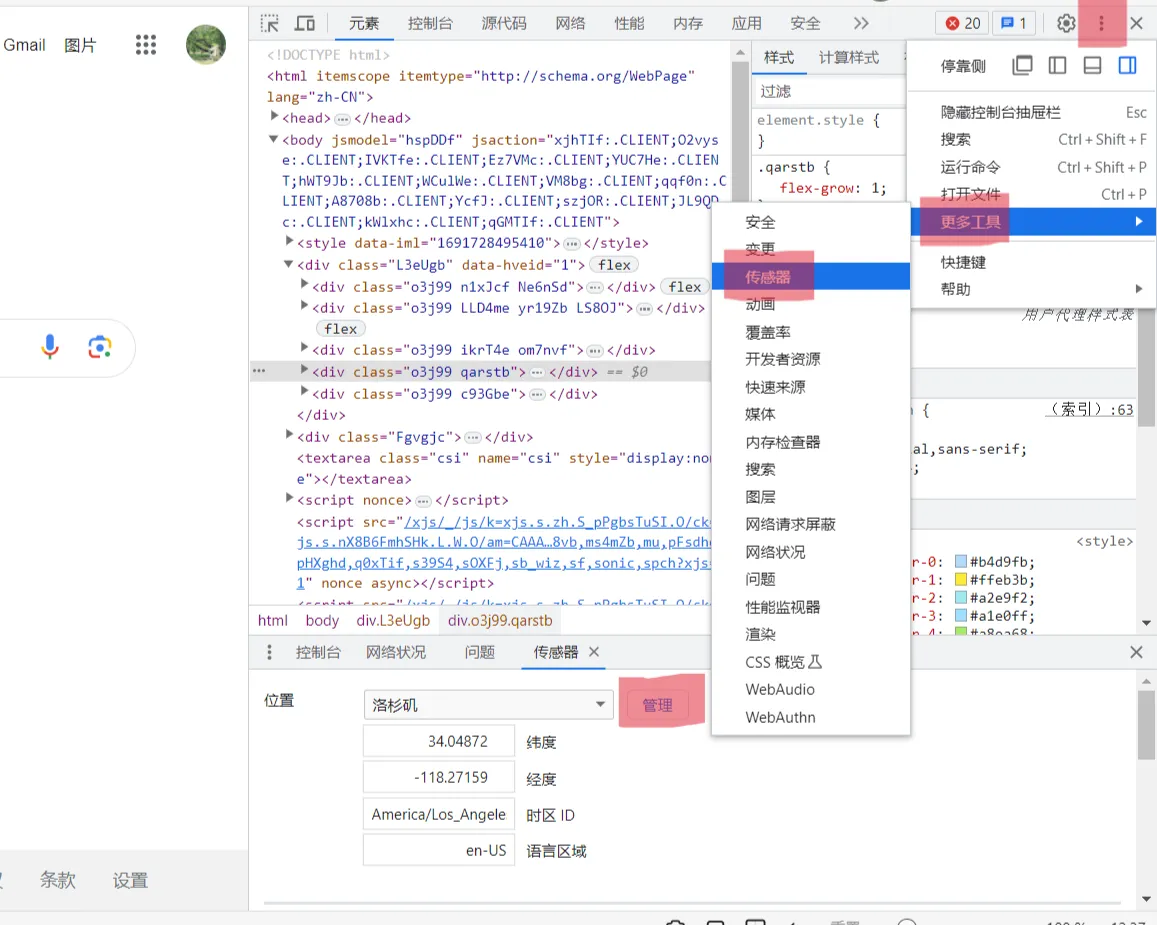
    <content type="html"><![CDATA[<h2 id="说明"><a href="#说明" class="headerlink" title="说明"></a>说明</h2><p>当你使用脚本检测流媒体解锁时，可能会发现<code>Youtube premium</code>被标记为CN，恭喜你不用买会员也可以享受到无广告的Youtube了。为什么会这样呢？猜测的原因有：使用代理时开启了定位或开启了Google账号位置记录；你的VPS邻居开启了定位导致IP段被标记。以下将说明其他特征与解决方案。</p><h2 id="特征"><a href="#特征" class="headerlink" title="特征"></a>特征</h2><ul><li>Gmail与Youtube会在首页隐藏图标，你可以输入网址访问。</li><li>默认开启安全搜索，不显示敏感内容，你可以在设置中关闭安全搜索。</li><li>搜索页面下方会显示Google标记你的位置信息，你可以使用虚拟定位更新这一位置。</li><li><a href="https://google.com/" rel="external nofollow noreferrer">https://google.com</a>会自动跳转到<code>google.com.hk</code>，你可以使用<a href="https://google.com/ncr" rel="external nofollow noreferrer">https://google.com/ncr</a>。</li><li><a href="https://www.youtube.com/red" rel="external nofollow noreferrer">https://www.youtube.com/red</a>显示当前地区不支持会员，你无法购买Youtube会员。</li></ul><h2 id="解决方案"><a href="#解决方案" class="headerlink" title="解决方案"></a>解决方案</h2><p>解决方案分两种，一种是向Google报告IP问题，但我在报告IPv6时总是提醒我IP地址无效；另一种是模拟定位，让你的位置信息被Goole重新读取。两种方法的快慢因人而定，可能几个小时也可能一天，或许也都需要接近一个月的时间。</p><h3 id="报告IP"><a href="#报告IP" class="headerlink" title="报告IP"></a>报告IP</h3><p><a href="https://support.google.com/websearch/workflow/9308722?hl=zh-Hans" rel="external nofollow noreferrer">点击</a>输入IP地址和国家，持续向Google报告即可。</p><h3 id="虚拟定位"><a href="#虚拟定位" class="headerlink" title="虚拟定位"></a>虚拟定位</h3><p>虚拟定位的方法也有两种，操作得当会立即改变搜索页面下方的位置信息，而这也是最关键的一步。手机只需要下载虚拟定位软件即可，以下详细介绍电脑浏览器更改位置信息的方法。<br>首先<a href="https://www.earthol.com/city-1020.html" rel="external nofollow noreferrer">打开地图</a>，搜索城市查找要定位的位置坐标。然后打开Chrome浏览器访问Google首页搜索<code>我的位置</code>，先不要给网站位置权限，鼠标右键打开<code>开发者工具-&gt;检查</code>依次点击标红位置。<br><img src="https://img.xml.wiki/blog/20.webp" alt="20"><br>点击<code>管理</code>之后添加位置，输入位置名称、经纬度及其他信息添加即可。然后再次来到<code>管理</code>点击左侧方框选择刚刚创建的位置名称。紧接着刷新网页，允许网站获得定位权限，点击搜索结果第一行的<code>使用确切位置</code>的定位按钮。现在你的位置就是你输入的坐标，来到网页最下方会看到<code>*** - 根据您的活动记录 - 更新位置信息</code>，点击更新位置信息即可。最后要做的就是等待。</p>]]></content>
    
    
    <summary type="html">当检测流媒体解锁时，Youtube premium可能会被标记为CN，简而言之就是VPS送中了。那么如何解决VPS送中问题？</summary>


    <category term="实用教程" scheme="https://www.xml.wiki/categories/%E5%AE%9E%E7%94%A8%E6%95%99%E7%A8%8B/"/>
    
    
    <category term="VPS" scheme="https://www.xml.wiki/tags/VPS/"/>
    
  </entry>
  
  <entry>
    <title>软路由如何只代理网桥Docker</title>
    <link href="https://www.xml.wiki/p/11978/"/>
    <id>https://www.xml.wiki/p/11978/</id>
    <published>2023-08-05T13:22:45.000Z</published>
    <updated>2023-08-06T08:58:18.000Z</updated>
    
    <content type="html"><![CDATA[<h2 id="说明"><a href="#说明" class="headerlink" title="说明"></a>说明</h2><p>你购买并设置了软路由用于代理，让局域网内的其他设备也可以使用。现在所有的流量都将先经过代理程序，这不可避免地会带来损耗，尤其是使用BT时大量的流量会被规则判定以后再直连，甚至也会影响游戏的NAT类型。而且也不得不考虑一个问题：软路由本身总是需要代理吗？为了解决这个问题，我将介绍一下DAE这个代理程序的优点和配置过程。<br>DAE有什么优点，它的代理性能比其他的好一点点但不多，主要看中的是它的直连性能。由于直连流量并不经过代理程序，会像直连一样直连。而且它可以识别网卡流量，将其LAN接口绑定Docker0网卡可以代理Docker流量，同时将其WAN接口与ETH0解绑就可以让软路由不走代理只代理Docker。</p><h2 id="配置"><a href="#配置" class="headerlink" title="配置"></a>配置</h2><h3 id="下载安装"><a href="#下载安装" class="headerlink" title="下载安装"></a>下载安装</h3><p>DAE的下载安装极其简单，而且有集成了DAE的面板daed便于操控，所以我们只需要安装daed即可。安装过程可以参考<a href="https://www.xml.wiki/p/54567/">Onecloud作为旁路由实现代理</a>，注意：如果你的系统不是armbian，请跳过升级内核，重新选择下载，如x86平台<strong>daed-linux-x86_64_v3_avx2.zip</strong>。</p><h3 id="配置说明"><a href="#配置说明" class="headerlink" title="配置说明"></a>配置说明</h3><p>在配置Global中找到接口及内核选项，LAN接口绑定使用代理的网卡，如果你是旁路由，绑定与WAN接口相同的网卡即可。此时如果只绑定LAN接口而留空WAN接口，那么软路由内所有流量直连，局域网内流量可以被代理。当绑定Docker0时所有的容器都可以使用代理，如果你只想让其中几个容器被代理，那么稍稍有些复杂。<br>创建一个网桥用于代理容器连接，此时主机网卡多出br-**，在LAN接口绑定即可代理容器流量。不需要代理的容器不必加入该网卡，流量经过Docker0。</p><figure class="highlight sh"><table><tr><td class="gutter"><pre><span class="line">1</span><br><span class="line">2</span><br><span class="line">3</span><br></pre></td><td class="code"><pre><span class="line">docker network create 要创建的网卡名称</span><br><span class="line"><span class="comment">#务必在容器创建时添加--network参数，否则流量默认走Docker0</span></span><br><span class="line">docker run -d --name=proxy --network=要创建的网卡名称</span><br></pre></td></tr></table></figure>]]></content>
    
    
    <summary type="html">当主机网络直连、Docker容器使用网桥时，如何使用代理程序让一部分Docker容器被代理，另一部分Doceker容器直连。</summary>


    <category term="实用教程" scheme="https://www.xml.wiki/categories/%E5%AE%9E%E7%94%A8%E6%95%99%E7%A8%8B/"/>
    
    
    <category term="代理" scheme="https://www.xml.wiki/tags/%E4%BB%A3%E7%90%86/"/>
    
    <category term="软路由" scheme="https://www.xml.wiki/tags/%E8%BD%AF%E8%B7%AF%E7%94%B1/"/>
    
    <category term="Docker" scheme="https://www.xml.wiki/tags/Docker/"/>
    
  </entry>
  
  <entry>
    <title>如何在Alpine上安装Cloudflare_tunnel</title>
    <link href="https://www.xml.wiki/p/9977/"/>
    <id>https://www.xml.wiki/p/9977/</id>
    <published>2023-08-03T14:29:25.000Z</published>
    <updated>2024-01-09T03:15:46.000Z</updated>
    
    <content type="html"><![CDATA[<h2 id="说明"><a href="#说明" class="headerlink" title="说明"></a>说明</h2><p>Tunnel支持Windows&#x2F;Mac&#x2F;Debian&#x2F;RedHat&#x2F;Docker，你可以在Alpine上使用Docker安装，但Alpine并不见得总是适合Docker。当机器内存过小，或一些其他原因不能使用Docker时，你可以手动安装Tunnel。</p><h2 id="安装过程"><a href="#安装过程" class="headerlink" title="安装过程"></a>安装过程</h2><p>首先你要下载Tunnel的运行程序，然后让它保持后台运行，这在其他系统中通常只是一行命令。其他相同操作请参照<a href="https://www.xml.wiki/p/53402/">Cloudflare_tunnel内网穿透</a>。</p><h3 id="下载运行程序"><a href="#下载运行程序" class="headerlink" title="下载运行程序"></a>下载运行程序</h3><p><a href="https://github.com/cloudflare/cloudflared/releases/latest/" rel="external nofollow noreferrer">点击下载</a><strong>cloudflared-linux-amd64</strong>，如果你的服务器架构不同，请自行选择，但不要下载安装包。</p><figure class="highlight sh"><table><tr><td class="gutter"><pre><span class="line">1</span><br><span class="line">2</span><br><span class="line">3</span><br></pre></td><td class="code"><pre><span class="line"><span class="built_in">chmod</span> +x cloudflared-linux-amd64</span><br><span class="line"><span class="built_in">mv</span> ./cloudflared-linux-amd64 cloudflared</span><br><span class="line"><span class="built_in">mv</span> ./cloudflared /usr/bin/</span><br></pre></td></tr></table></figure><h3 id="添加后台运行"><a href="#添加后台运行" class="headerlink" title="添加后台运行"></a>添加后台运行</h3><p>通常会在Tunnel选择系统页面看到一长串的字母，比如<code>cloudflared.exe service install eyJhI***</code>，将${token}替换为eyJhI***即可。</p><figure class="highlight sh"><table><tr><td class="gutter"><pre><span class="line">1</span><br><span class="line">2</span><br><span class="line">3</span><br><span class="line">4</span><br><span class="line">5</span><br><span class="line">6</span><br><span class="line">7</span><br><span class="line">8</span><br><span class="line">9</span><br><span class="line">10</span><br><span class="line">11</span><br><span class="line">12</span><br></pre></td><td class="code"><pre><span class="line"><span class="built_in">echo</span> <span class="string">&#x27;#!/sbin/openrc-run</span></span><br><span class="line"><span class="string"></span></span><br><span class="line"><span class="string">command=&quot;/usr/bin/cloudflared&quot;</span></span><br><span class="line"><span class="string">command_args=&quot;tunnel --no-autoupdate run --token $&#123;token&#125;&quot;</span></span><br><span class="line"><span class="string">command_background=&quot;yes&quot;</span></span><br><span class="line"><span class="string">pidfile=&quot;/run/cloudflared.pid&quot;</span></span><br><span class="line"><span class="string"></span></span><br><span class="line"><span class="string">depend() &#123;</span></span><br><span class="line"><span class="string">    need net</span></span><br><span class="line"><span class="string">&#125;&#x27;</span> &gt;&gt; /etc/init.d/cloudflared</span><br><span class="line">rc-service cloudflared start</span><br><span class="line">rc-update add cloudflared default</span><br></pre></td></tr></table></figure>]]></content>
    
    
    <summary type="html">在Alpine上安装Cloudflare_tunnel</summary>


    <category term="实用教程" scheme="https://www.xml.wiki/categories/%E5%AE%9E%E7%94%A8%E6%95%99%E7%A8%8B/"/>
    
    
    <category term="Cloudflare" scheme="https://www.xml.wiki/tags/Cloudflare/"/>
    
    <category term="Alpine" scheme="https://www.xml.wiki/tags/Alpine/"/>
    
  </entry>
  
  <entry>
    <title>一键脚本合集</title>
    <link href="https://www.xml.wiki/p/16503/"/>
    <id>https://www.xml.wiki/p/16503/</id>
    <published>2023-08-03T12:27:29.000Z</published>
    <updated>2024-01-09T03:16:14.000Z</updated>
    
    <content type="html"><![CDATA[<h2 id="说明"><a href="#说明" class="headerlink" title="说明"></a>说明</h2><p>脚本会按照功能进行分类，暂时分为重装，测评和安装工具三大类，更多详细内容请点击当前标题。如果大家有任何脚本想要分享，可以在下方评论区留言。</p><h2 id="重装"><a href="#重装" class="headerlink" title="重装"></a>重装</h2><p>本节脚本主要涉及DD系统，包含KVM和Openvz&#x2F;LXC的重装。</p><h3 id="leitbogioro"><a href="#leitbogioro" class="headerlink" title="leitbogioro"></a><a href="https://github.com/leitbogioro/Tools" rel="external nofollow noreferrer">leitbogioro</a></h3><figure class="highlight sh"><table><tr><td class="gutter"><pre><span class="line">1</span><br></pre></td><td class="code"><pre><span class="line">wget --no-check-certificate -qO InstallNET.sh <span class="string">&#x27;https://raw.githubusercontent.com/leitbogioro/Tools/master/Linux_reinstall/InstallNET.sh&#x27;</span> &amp;&amp; <span class="built_in">chmod</span> a+x InstallNET.sh</span><br></pre></td></tr></table></figure><p><code>Debian12/raid0/Ubuntu22.04/AlmaLinux/RockyLinux/CentOS9/Fedora38/AlpineLinux/KaliLinux/Windows</code>一键重装，而且长期更新。作者称它史上最强，当然还需要MJJ们检验一番，可以去Nodeseek<a href="https://www.nodeseek.com/post-9383-1" rel="external nofollow noreferrer">反馈BUG</a>。</p><h3 id="MoeClub"><a href="#MoeClub" class="headerlink" title="MoeClub"></a><a href="https://github.com/MoeClub/Note" rel="external nofollow noreferrer">MoeClub</a></h3><figure class="highlight sh"><table><tr><td class="gutter"><pre><span class="line">1</span><br></pre></td><td class="code"><pre><span class="line">bash &lt;(wget --no-check-certificate -qO- <span class="string">&#x27;https://raw.githubusercontent.com/MoeClub/Note/master/InstallNET.sh&#x27;</span>) -d 12 -v 64 -p 密码 -port 端口 -a</span><br></pre></td></tr></table></figure><p> 自动安装，参数自己调整，默认密码<code>MoeClub.org</code>。</p><h3 id="OsMutation"><a href="#OsMutation" class="headerlink" title="OsMutation"></a><a href="https://github.com/LloydAsp/OsMutation" rel="external nofollow noreferrer">OsMutation</a></h3><figure class="highlight sh"><table><tr><td class="gutter"><pre><span class="line">1</span><br></pre></td><td class="code"><pre><span class="line">curl -so OsMutation.sh https://raw.githubusercontent.com/LloydAsp/OsMutation/main/OsMutation.sh &amp;&amp; <span class="built_in">chmod</span> u+x OsMutation.sh &amp;&amp; ./OsMutation.sh</span><br></pre></td></tr></table></figure><p>脚本仅支持<code>OpenVZ7/LXC</code>，可以在<code>Debian/CentOS/Alpine</code>系统之间自由转换。同时也推出了轻量版本，支持小于1G的硬盘重装，请自行查看。</p><h2 id="测评"><a href="#测评" class="headerlink" title="测评"></a>测评</h2><p>本节脚本主要涉及对主机的评测，包含跑分测试、流媒体检测和三网测速。</p><h3 id="YABS"><a href="#YABS" class="headerlink" title="YABS"></a><a href="https://github.com/masonr/yet-another-bench-script" rel="external nofollow noreferrer">YABS</a></h3><figure class="highlight sh"><table><tr><td class="gutter"><pre><span class="line">1</span><br></pre></td><td class="code"><pre><span class="line">curl -sL yabs.sh | bash -s -- -5</span><br></pre></td></tr></table></figure><p>测评内容主要包括系统基本信息、硬盘读写速度、iperf3速度测试、Geekbench5跑分测试。</p><h3 id="RegionRestrictionCheck"><a href="#RegionRestrictionCheck" class="headerlink" title="RegionRestrictionCheck"></a><a href="https://github.com/lmc999/RegionRestrictionCheck" rel="external nofollow noreferrer">RegionRestrictionCheck</a></h3><figure class="highlight sh"><table><tr><td class="gutter"><pre><span class="line">1</span><br></pre></td><td class="code"><pre><span class="line">bash &lt;(curl -L -s check.unlock.media)</span><br></pre></td></tr></table></figure><p>流媒体检测脚本，项目全面而且支持Docker运行。</p><h3 id="今天就到这里了"><a href="#今天就到这里了" class="headerlink" title="今天就到这里了"></a>今天就到这里了</h3>]]></content>
    
    
    <summary type="html">本篇收集一些VPS常用脚本，方便大家使用。</summary>


    <category term="实用教程" scheme="https://www.xml.wiki/categories/%E5%AE%9E%E7%94%A8%E6%95%99%E7%A8%8B/"/>
    
    
    <category term="VPS" scheme="https://www.xml.wiki/tags/VPS/"/>
    
  </entry>
  
  <entry>
    <title>如何使用+86注册台湾Paypal</title>
    <link href="https://www.xml.wiki/p/49172/"/>
    <id>https://www.xml.wiki/p/49172/</id>
    <published>2023-08-02T04:10:28.000Z</published>
    <updated>2024-01-09T03:15:38.000Z</updated>
    
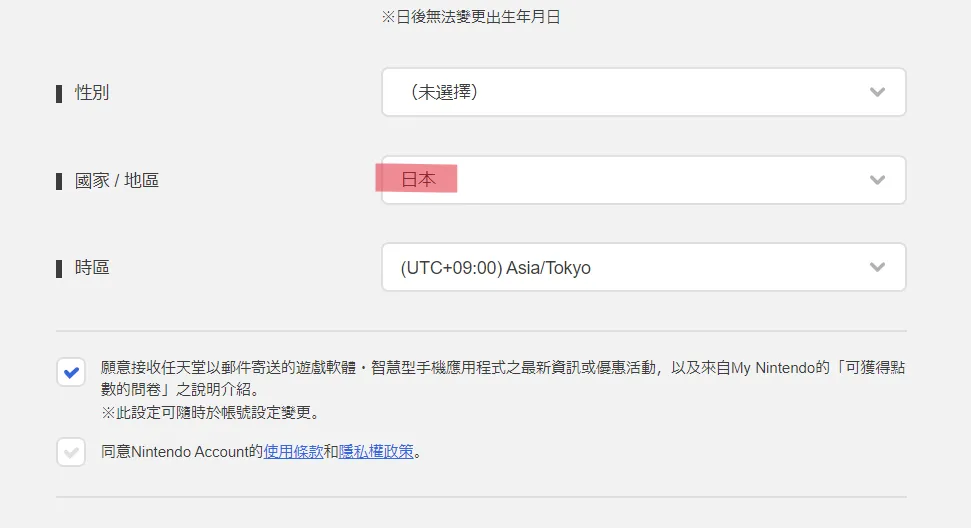
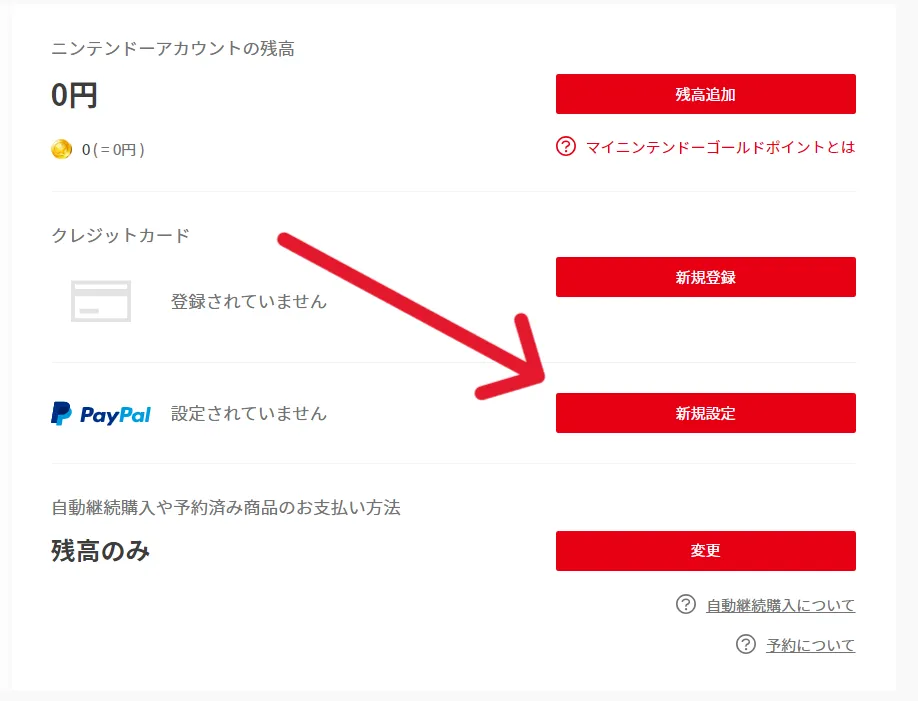
    <content type="html"><![CDATA[<h2 id="说明"><a href="#说明" class="headerlink" title="说明"></a>说明</h2><p>如果你身处境内又想要一个台湾Paypal，直接注册的话会要求你输入+886手机号。最简单的办法就是去买一个，但如果只有+86的话也不是没有解决的办法。本教程将介绍如何使用+86注册台湾Paypal，建议使用台湾IP避免风控（头铁也不是不行）。</p><h2 id="注册Paypal"><a href="#注册Paypal" class="headerlink" title="注册Paypal"></a>注册Paypal</h2><p>1.前往<a href="https://accounts.nintendo.com/authorize_age_gate_us?lang=zh-TW" rel="external nofollow noreferrer">任天堂</a>注册账号，国家&#x2F;地区请选择<strong>日本</strong>。<br><img src="https://img.xml.wiki/blog/15.webp" alt="15"><br>2.进入<a href="https://ec.nintendo.com/my/" rel="external nofollow noreferrer">游戏商店</a>。<br><img src="https://img.xml.wiki/blog/16.webp" alt="16"><br>3.填写注册信息，<a href="https://www.meiguodizhi.com/tw-address" rel="external nofollow noreferrer">台湾地址</a>。<br><img src="https://img.xml.wiki/blog/17.webp" alt="17"><br><img src="https://img.xml.wiki/blog/18.webp" alt="18"><br><img src="https://img.xml.wiki/blog/19.webp" alt="19"></p><h2 id="重要提醒"><a href="#重要提醒" class="headerlink" title="重要提醒"></a>重要提醒</h2><p>虽然注册账号成功了，但也很容易风控，养号就全靠个人领悟了。如果要求上传身份证明和交易账单，你上传个身份证上去也大概率寄。支付时请设置银行卡汇率，否则就会使用Paypal汇率，比当前汇率要高。<br>给打游戏的留条活路，<strong>不要滥用！</strong></p>]]></content>
    
    
    <summary type="html">使用+86手机号码注册台湾Paypal。</summary>


    <category term="实用教程" scheme="https://www.xml.wiki/categories/%E5%AE%9E%E7%94%A8%E6%95%99%E7%A8%8B/"/>
    
    
    <category term="Paypal" scheme="https://www.xml.wiki/tags/Paypal/"/>
    
  </entry>
  
  <entry>
    <title>Nat_vps使用技巧合集</title>
    <link href="https://www.xml.wiki/p/19108/"/>
    <id>https://www.xml.wiki/p/19108/</id>
    <published>2023-08-01T12:23:21.000Z</published>
    <updated>2024-01-09T03:14:38.000Z</updated>
    
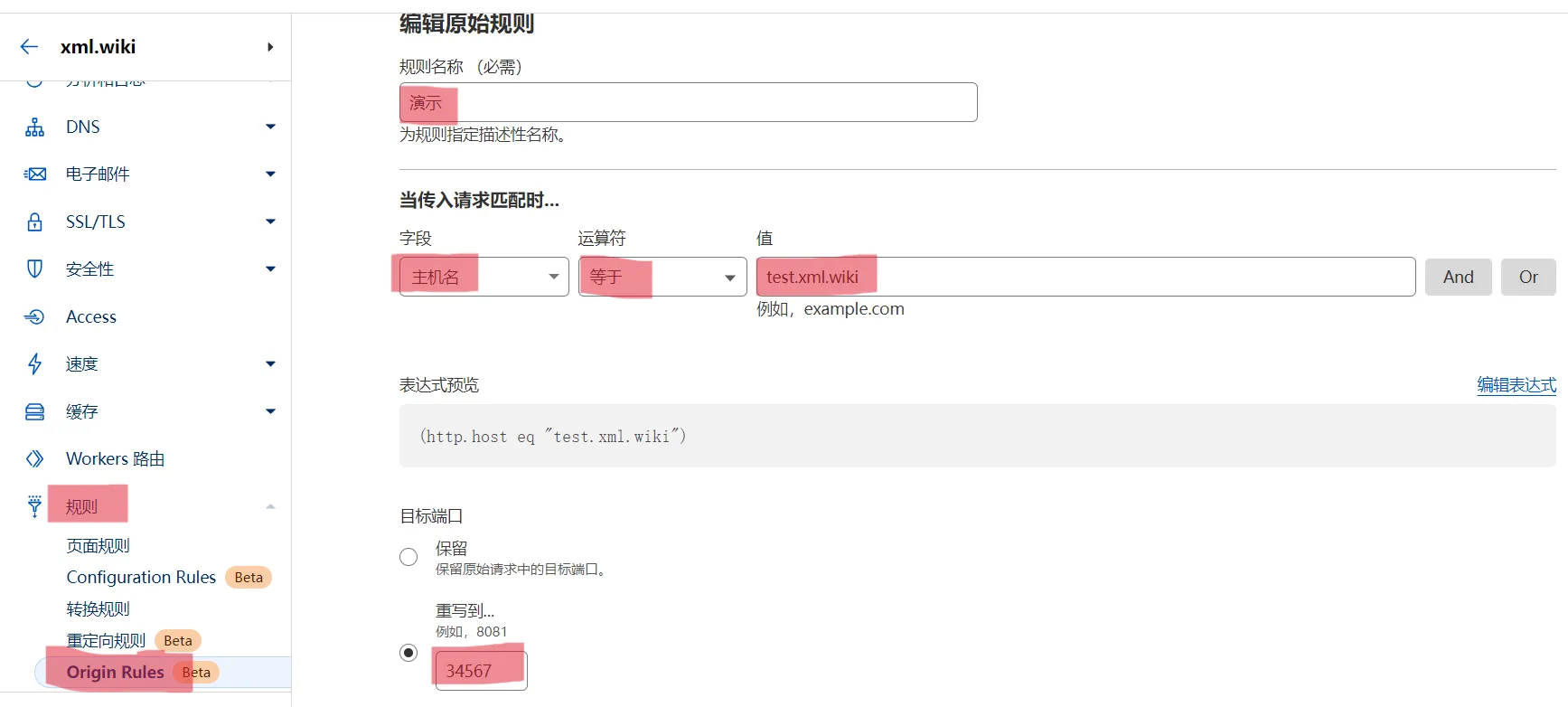
    <content type="html"><![CDATA[<h2 id="说明"><a href="#说明" class="headerlink" title="说明"></a>说明</h2><p>Nat_vps是共享一个公网IP地址的虚拟化主机。一般的机器也就共享ipv4，获得一定数量的高位端口，要么生而被墙要么生而要墙，但是奈何价格便宜。一些机器也会同时附带ipv6地址，相比单ipv6机器性价比更高，直接使用ipv6即可。本教程将介绍如何使用其ipv4，主要分为建站和代理两个部分。</p><h2 id="建站"><a href="#建站" class="headerlink" title="建站"></a>建站</h2><h3 id="反向代理"><a href="#反向代理" class="headerlink" title="反向代理"></a>反向代理</h3><p>IP未墙使用反向代理软件直接监听开放的高位端口即可，以Caddy2为例：（其他请参照<a href="https://www.xml.wiki/p/2557/">Websocket协议的反向代理配置</a>，更改监听端口即可）</p><figure class="highlight text"><table><tr><td class="gutter"><pre><span class="line">1</span><br><span class="line">2</span><br><span class="line">3</span><br><span class="line">4</span><br><span class="line">5</span><br><span class="line">6</span><br><span class="line">7</span><br><span class="line">8</span><br><span class="line">9</span><br><span class="line">10</span><br><span class="line">11</span><br></pre></td><td class="code"><pre><span class="line">xml.wiki:34567 &#123;</span><br><span class="line">    tls /root/cert/pem /root/cert/key</span><br><span class="line">    encode zstd gzip    #压缩</span><br><span class="line">    root * ./    #域名映射根路径</span><br><span class="line">    file_server     #启动文件服务</span><br><span class="line">&#125;</span><br><span class="line"></span><br><span class="line">xml.wiki:34567 &#123;</span><br><span class="line">    tls /root/cert/pem /root/cert/key</span><br><span class="line">    reverse_proxy localhost:7890</span><br><span class="line">&#125;</span><br></pre></td></tr></table></figure><h3 id="Origin-Rules"><a href="#Origin-Rules" class="headerlink" title="Origin Rules"></a>Origin Rules</h3><p>Cloudflare官方支持的非标准端口有HTTP<code>80、8080、8880、2052、2082、2086、2095</code> HTTPS<code>443、2053、2083、2087、2096、8443</code>。然而Nat_vps的高位端口一般是10000以上，所幸我们可以使用Cloudflare Origin Rules来接入任意非标准端口。<br>注意：需要提前把用到的域名解析到主机上，并开启小云朵，否则无效。<br><img src="https://img.xml.wiki/blog/14.webp" alt="14"></p><h3 id="Cloudflare-Tunnel"><a href="#Cloudflare-Tunnel" class="headerlink" title="Cloudflare Tunnel"></a>Cloudflare Tunnel</h3><p>请参照<a href="https://www.xml.wiki/p/53402/">Cloudflare_tunnel内网穿透</a></p><h2 id="代理"><a href="#代理" class="headerlink" title="代理"></a>代理</h2><p>建站的端口也可以使用代理，本节讲解使用ws+tls协议，<strong>默认使用X-ui等服务端开启ws但关闭了tls，手机电脑等客户端设置端口为443并开启了tls</strong>。</p><h3 id="Origin-Rules-1"><a href="#Origin-Rules-1" class="headerlink" title="Origin Rules"></a>Origin Rules</h3><p>首先在X-ui设置代理协议的监听端口，如443，然后按照建站的使用方式设置Origin Rules，最后使用端口转发或反向代理将34567的流量指向443即可。</p><h3 id="Cloudflare-Tunnel-1"><a href="#Cloudflare-Tunnel-1" class="headerlink" title="Cloudflare Tunnel"></a>Cloudflare Tunnel</h3><p>首先在X-ui设置代理协议的监听端口，如443，然后按照建站的使用方式设置Cloudflare Tunnel即可。</p>]]></content>
    
    
    <summary type="html">本片介绍Nat_vps的使用技巧，包含建站和代理等内容。</summary>


    <category term="实用教程" scheme="https://www.xml.wiki/categories/%E5%AE%9E%E7%94%A8%E6%95%99%E7%A8%8B/"/>
    
    
    <category term="Nat" scheme="https://www.xml.wiki/tags/Nat/"/>
    
    <category term="VPS" scheme="https://www.xml.wiki/tags/VPS/"/>
    
  </entry>
  
  <entry>
    <title>如何让Linux程序后台运行</title>
    <link href="https://www.xml.wiki/p/13030/"/>
    <id>https://www.xml.wiki/p/13030/</id>
    <published>2023-07-28T21:18:47.000Z</published>
    <updated>2024-01-09T03:15:30.000Z</updated>
    
    <content type="html"><![CDATA[<h2 id="说明"><a href="#说明" class="headerlink" title="说明"></a>说明</h2><p>当我们需要让Linux程序后台运行时，可以使用以下四种方式：添加&amp;符号、nohup、screen以及systemctl。其中systemctl还可以配置开机自启动。</p><h2 id=""><a href="#" class="headerlink" title="&amp;"></a>&amp;</h2><figure class="highlight sh"><table><tr><td class="gutter"><pre><span class="line">1</span><br><span class="line">2</span><br><span class="line">3</span><br></pre></td><td class="code"><pre><span class="line">./test &amp;    <span class="comment">#在可执行程序后空一格添加&amp;</span></span><br><span class="line">ps -ef|grep <span class="built_in">test</span>    <span class="comment">#查看是否在后台运行，可查看PID</span></span><br><span class="line">killall <span class="built_in">test</span>    <span class="comment">#关闭后台运行或kill -9 PID</span></span><br></pre></td></tr></table></figure><h2 id="nohup"><a href="#nohup" class="headerlink" title="nohup"></a>nohup</h2><figure class="highlight sh"><table><tr><td class="gutter"><pre><span class="line">1</span><br><span class="line">2</span><br><span class="line">3</span><br><span class="line">4</span><br><span class="line">5</span><br></pre></td><td class="code"><pre><span class="line"><span class="built_in">which</span> <span class="built_in">nohup</span>    <span class="comment">#查询是否安装nohup，输出/usr/bin/nohup则已安装</span></span><br><span class="line">apt install coreutils    <span class="comment">#安装nohup</span></span><br><span class="line"><span class="built_in">nohup</span> ./test &amp;    <span class="comment">#会输出nohup.out文件</span></span><br><span class="line"><span class="built_in">nohup</span> ./test &gt; /dev/null 2&gt;&amp;1 &amp;    <span class="comment">#关闭输出</span></span><br><span class="line"><span class="built_in">kill</span> -9 PID    <span class="comment">#关闭后台运行</span></span><br></pre></td></tr></table></figure><h2 id="screen"><a href="#screen" class="headerlink" title="screen"></a>screen</h2><figure class="highlight sh"><table><tr><td class="gutter"><pre><span class="line">1</span><br><span class="line">2</span><br><span class="line">3</span><br><span class="line">4</span><br><span class="line">5</span><br><span class="line">6</span><br></pre></td><td class="code"><pre><span class="line">apt install screen    <span class="comment">#安装screen</span></span><br><span class="line">screen -S <span class="built_in">test</span>    <span class="comment">#创建一个名为test的窗口并进入</span></span><br><span class="line">Ctrl a+d    <span class="comment">#退出窗口但不关闭，使用exit退出且关闭窗口</span></span><br><span class="line">screen -<span class="built_in">ls</span>    <span class="comment">#列出所有窗口</span></span><br><span class="line">screen -x <span class="built_in">test</span>   <span class="comment">#连接到已创建的窗口</span></span><br><span class="line">screen -X -S <span class="built_in">test</span> quit    <span class="comment">#关闭窗口</span></span><br></pre></td></tr></table></figure><h2 id="systemctl"><a href="#systemctl" class="headerlink" title="systemctl"></a>systemctl</h2><figure class="highlight sh"><table><tr><td class="gutter"><pre><span class="line">1</span><br><span class="line">2</span><br><span class="line">3</span><br><span class="line">4</span><br><span class="line">5</span><br><span class="line">6</span><br><span class="line">7</span><br><span class="line">8</span><br><span class="line">9</span><br><span class="line">10</span><br><span class="line">11</span><br><span class="line">12</span><br><span class="line">13</span><br><span class="line">14</span><br><span class="line">15</span><br><span class="line">16</span><br><span class="line">17</span><br><span class="line">18</span><br></pre></td><td class="code"><pre><span class="line">nano /lib/systemd/system/test.service    <span class="comment">#输入以下内容</span></span><br><span class="line">[Unit]</span><br><span class="line">Description=Test Service</span><br><span class="line">After=network.target</span><br><span class="line"></span><br><span class="line">[Service]</span><br><span class="line">ExecStart=/path/to/test.sh</span><br><span class="line">Restart=on-failure</span><br><span class="line"></span><br><span class="line">[Install]</span><br><span class="line">WantedBy=multi-user.target</span><br><span class="line">systemctl daemon-reload    <span class="comment">#刷新服务</span></span><br><span class="line">systemctl <span class="built_in">enable</span> <span class="built_in">test</span>    <span class="comment">#开机自启</span></span><br><span class="line">systemctl <span class="built_in">disable</span> <span class="built_in">test</span>    <span class="comment">#关闭开机自启</span></span><br><span class="line">systemctl start <span class="built_in">test</span>    <span class="comment">#启动</span></span><br><span class="line">systemctl stop <span class="built_in">test</span>    <span class="comment">#关闭</span></span><br><span class="line">systemctl restart <span class="built_in">test</span>    <span class="comment">#重启</span></span><br><span class="line">systemctl status <span class="built_in">test</span>    <span class="comment">#查看状态</span></span><br></pre></td></tr></table></figure><h3 id="alpine"><a href="#alpine" class="headerlink" title="alpine"></a>alpine</h3><p>alpine没有systemd管理服务，因此需要安装openrc。</p><figure class="highlight sh"><table><tr><td class="gutter"><pre><span class="line">1</span><br><span class="line">2</span><br><span class="line">3</span><br><span class="line">4</span><br><span class="line">5</span><br><span class="line">6</span><br><span class="line">7</span><br><span class="line">8</span><br><span class="line">9</span><br><span class="line">10</span><br><span class="line">11</span><br><span class="line">12</span><br><span class="line">13</span><br><span class="line">14</span><br><span class="line">15</span><br><span class="line">16</span><br><span class="line">17</span><br><span class="line">18</span><br><span class="line">19</span><br><span class="line">20</span><br></pre></td><td class="code"><pre><span class="line">apk add openrc</span><br><span class="line">nano /etc/init.d/test    <span class="comment">#输入以下内容</span></span><br><span class="line"><span class="comment">#!/sbin/openrc-run</span></span><br><span class="line"></span><br><span class="line"><span class="built_in">command</span>=<span class="string">&quot;/path/to/test&quot;</span></span><br><span class="line">command_args=<span class="string">&quot;命令参数&quot;</span></span><br><span class="line">command_background=<span class="string">&quot;yes&quot;</span></span><br><span class="line">pidfile=<span class="string">&quot;/run/test.pid&quot;</span></span><br><span class="line"></span><br><span class="line"><span class="function"><span class="title">depend</span></span>() &#123;</span><br><span class="line">    need net</span><br><span class="line">&#125;</span><br><span class="line"><span class="built_in">chmod</span> +x /etc/init.d/test    <span class="comment">#赋予可执行权限</span></span><br><span class="line">rc-service <span class="built_in">test</span> start    <span class="comment">#启动</span></span><br><span class="line">rc-service <span class="built_in">test</span> stop    <span class="comment">#关闭</span></span><br><span class="line">rc-service <span class="built_in">test</span> restart    <span class="comment">#重启</span></span><br><span class="line">rc-service <span class="built_in">test</span> status    <span class="comment">#查看状态</span></span><br><span class="line">rc-update add <span class="built_in">test</span>    <span class="comment">#开机自启</span></span><br><span class="line">rc-update del <span class="built_in">test</span>    <span class="comment">#关闭开机自启</span></span><br><span class="line">rc-update show    <span class="comment">#查看所有开机自启</span></span><br></pre></td></tr></table></figure>]]></content>
    
    
    <summary type="html">本教程将介绍让Linux后台运行的四种命令，&amp;、nohup、screen以及systemctl。</summary>


    <category term="实用教程" scheme="https://www.xml.wiki/categories/%E5%AE%9E%E7%94%A8%E6%95%99%E7%A8%8B/"/>
    
    
    <category term="systemd" scheme="https://www.xml.wiki/tags/systemd/"/>
    
    <category term="Linux" scheme="https://www.xml.wiki/tags/Linux/"/>
    
  </entry>
  
  <entry>
    <title>Sshwifty: Web SSH &amp; Telnet Client</title>
    <link href="https://www.xml.wiki/p/45848/"/>
    <id>https://www.xml.wiki/p/45848/</id>
    <published>2023-07-27T19:23:05.000Z</published>
    <updated>2024-01-09T03:15:06.000Z</updated>
    
    <content type="html"><![CDATA[<h2 id="说明"><a href="#说明" class="headerlink" title="说明"></a>说明</h2><p><a href="https://github.com/nirui/sshwifty" rel="external nofollow noreferrer">Sshwifty</a>是一个用于SSH的网页客户端，并集成了Telnet功能。相比于ttyd，Sshwifty提供了密匙认证，在能够访问自身服务器的基础上又可以连接其他服务器，十分的便利。</p><h2 id="安装"><a href="#安装" class="headerlink" title="安装"></a>安装</h2><h3 id="下载安装"><a href="#下载安装" class="headerlink" title="下载安装"></a><a href="https://github.com/nirui/sshwifty/releases" rel="external nofollow noreferrer">下载安装</a></h3><p>点击本小节标题选择适合自己架构的安装包，如<strong>sshwifty_0.2.35-beta-release_linux_amd64.tar.gz</strong>。注意：Sshwifty登录需要配置SSL证书，否则会报错无法登录，建议使用Caddy反向代理。</p><figure class="highlight sh"><table><tr><td class="gutter"><pre><span class="line">1</span><br><span class="line">2</span><br><span class="line">3</span><br><span class="line">4</span><br></pre></td><td class="code"><pre><span class="line">tar -xvf sshwifty_0.2.35-beta-release_linux_amd64.tar.gz</span><br><span class="line"><span class="built_in">mv</span> sshwifty.conf.example.json sshwifty.conf.json</span><br><span class="line"><span class="built_in">chmod</span> +x sshwifty_linux_amd64</span><br><span class="line">./sshwifty_linux_amd64</span><br></pre></td></tr></table></figure><h3 id="Docker安装"><a href="#Docker安装" class="headerlink" title="Docker安装"></a>Docker安装</h3><figure class="highlight sh"><table><tr><td class="gutter"><pre><span class="line">1</span><br><span class="line">2</span><br><span class="line">3</span><br><span class="line">4</span><br><span class="line">5</span><br><span class="line">6</span><br><span class="line">7</span><br><span class="line">8</span><br><span class="line">9</span><br><span class="line">10</span><br></pre></td><td class="code"><pre><span class="line">docker run --detach \</span><br><span class="line">--restart always \</span><br><span class="line">--publish 8182:8182 \</span><br><span class="line">--<span class="built_in">env</span> SSHWIFTY_DOCKER_TLSCERT=<span class="string">&quot;<span class="subst">$(cat domain.crt)</span>&quot;</span> \</span><br><span class="line">--<span class="built_in">env</span> SSHWIFTY_DOCKER_TLSCERTKEY=<span class="string">&quot;<span class="subst">$(cat domain.key)</span>&quot;</span> \</span><br><span class="line">--name sshwifty \</span><br><span class="line">niruix/sshwifty:latest</span><br><span class="line"><span class="comment">#若使用反向代理需删去--env，也可自行配置证书或使用自签证书：</span></span><br><span class="line">openssl req \</span><br><span class="line">-newkey rsa:4096 -nodes -keyout domain.key -x509 -days 90 -out domain.crt</span><br></pre></td></tr></table></figure><h2 id="配置详解"><a href="#配置详解" class="headerlink" title="配置详解"></a>配置详解</h2><p><strong>sshwifty.conf.json</strong>需要与sshwifty_linux_amd64同目录，或放置在<code>/etc/</code>与<code>/root/.config/</code>之一即可。</p><figure class="highlight text"><table><tr><td class="gutter"><pre><span class="line">1</span><br><span class="line">2</span><br><span class="line">3</span><br><span class="line">4</span><br><span class="line">5</span><br><span class="line">6</span><br><span class="line">7</span><br><span class="line">8</span><br><span class="line">9</span><br><span class="line">10</span><br><span class="line">11</span><br><span class="line">12</span><br><span class="line">13</span><br><span class="line">14</span><br><span class="line">15</span><br><span class="line">16</span><br><span class="line">17</span><br><span class="line">18</span><br><span class="line">19</span><br><span class="line">20</span><br><span class="line">21</span><br><span class="line">22</span><br><span class="line">23</span><br><span class="line">24</span><br><span class="line">25</span><br><span class="line">26</span><br><span class="line">27</span><br><span class="line">28</span><br><span class="line">29</span><br><span class="line">30</span><br><span class="line">31</span><br><span class="line">32</span><br><span class="line">33</span><br><span class="line">34</span><br><span class="line">35</span><br><span class="line">36</span><br><span class="line">37</span><br><span class="line">38</span><br><span class="line">39</span><br><span class="line">40</span><br><span class="line">41</span><br><span class="line">42</span><br><span class="line">43</span><br><span class="line">44</span><br><span class="line">45</span><br><span class="line">46</span><br><span class="line">47</span><br><span class="line">48</span><br><span class="line">49</span><br><span class="line">50</span><br><span class="line">51</span><br><span class="line">52</span><br><span class="line">53</span><br><span class="line">54</span><br><span class="line">55</span><br></pre></td><td class="code"><pre><span class="line">&#123;</span><br><span class="line">  &quot;HostName&quot;: &quot;&quot;,    #默认为空允许所有域名，可指定域名</span><br><span class="line">  &quot;SharedKey&quot;: &quot;WEB_ACCESS_PASSWORD&quot;,    #网页登录密码，为空则允许所有人访问</span><br><span class="line">  &quot;DialTimeout&quot;: 5,    #超时时间（秒）</span><br><span class="line">  &quot;Socks5&quot;: &quot;&quot;,    #使用Socks5代理</span><br><span class="line">  &quot;Socks5User&quot;: &quot;&quot;,    #Socks5用户名</span><br><span class="line">  &quot;Socks5Password&quot;: &quot;&quot;,    #Socks5密码</span><br><span class="line">  &quot;Servers&quot;: [    #可设置多个，在不同端口提供服务</span><br><span class="line">    &#123;</span><br><span class="line">      &quot;ListenInterface&quot;: &quot;0.0.0.0&quot;,    #监听本地网络接口</span><br><span class="line">      &quot;ListenPort&quot;: 8182,    #监听端口</span><br><span class="line">      &quot;InitialTimeout&quot;: 3,    #HTTP握手超时（秒）</span><br><span class="line">      &quot;ReadTimeout&quot;: 60,    #无操作时后端服务器与客户端保持连接时间（秒）</span><br><span class="line">      &quot;WriteTimeout&quot;: 60,    #服务器等待客户端连接准备接收新数据时间（秒），超时连接关闭</span><br><span class="line">      &quot;HeartbeatTimeout&quot;: 20,    #内部回显请求间隔（秒）</span><br><span class="line">      &quot;ReadDelay&quot;: 10,    #每个请求之间强制延迟（毫秒）</span><br><span class="line">      &quot;WriteDelay&quot;: 10,    #每次写入之间强制延迟（毫秒）</span><br><span class="line">      &quot;TLSCertificateFile&quot;: &quot;&quot;,    #SSL证书路径</span><br><span class="line">      &quot;TLSCertificateKeyFile&quot;: &quot;&quot;    #SSL证书密匙路径</span><br><span class="line">    &#125;</span><br><span class="line">  ],</span><br><span class="line">  &quot;Presets&quot;: [    #预先设置内容，以免手动再填写</span><br><span class="line">    &#123;</span><br><span class="line">      &quot;Title&quot;: &quot;SDF.org Unix Shell&quot;,    #名称</span><br><span class="line">      &quot;Type&quot;: &quot;SSH&quot;,    #连接类型SSH或Telnet</span><br><span class="line">      &quot;Host&quot;: &quot;xml.wiki:22&quot;,    #连接地址和端口</span><br><span class="line">      &quot;Meta&quot;: &#123;</span><br><span class="line">        &quot;Encoding&quot;: &quot;utf-8&quot;,    #编码</span><br><span class="line">        &quot;Authentication&quot;: &quot;Password&quot;    #认证方式，密码或密匙认证</span><br><span class="line">      &#125;</span><br><span class="line">    &#125;,</span><br><span class="line">    &#123;</span><br><span class="line">      &quot;Title&quot;: &quot;My own super secure server&quot;,</span><br><span class="line">      &quot;Type&quot;: &quot;SSH&quot;,</span><br><span class="line">      &quot;Host&quot;: &quot;localhost&quot;,</span><br><span class="line">      &quot;Meta&quot;: &#123;</span><br><span class="line">        &quot;User&quot;: &quot;root&quot;,</span><br><span class="line">        &quot;Encoding&quot;: &quot;utf-8&quot;,</span><br><span class="line">        &quot;Private Key&quot;: &quot;-----BEGIN RSA Will be sent to client-END RSA PRI...\n&quot;,    #私匙内容</span><br><span class="line">        #&quot;Private Key&quot;: &quot;file:///root/.ssh/private_key&quot;,    #也可指定私匙文件</span><br><span class="line">        &quot;Authentication&quot;: &quot;Private Key&quot;,    #认证方式，密匙认证</span><br><span class="line">        &quot;Fingerprint&quot;: &quot;SHA256:bgO....&quot;    #公匙指纹数据，默认</span><br><span class="line">      &#125;</span><br><span class="line">    &#125;,</span><br><span class="line">    &#123;</span><br><span class="line">      &quot;Title&quot;: &quot;My own super expensive router&quot;,</span><br><span class="line">      &quot;Type&quot;: &quot;Telnet&quot;,</span><br><span class="line">      &quot;Host&quot;: &quot;10.0.0.1&quot;,</span><br><span class="line">      &quot;Meta&quot;: &#123;</span><br><span class="line">        &quot;Encoding&quot;: &quot;ibm866&quot;</span><br><span class="line">      &#125;</span><br><span class="line">    &#125;</span><br><span class="line">  ],</span><br><span class="line">  &quot;OnlyAllowPresetRemotes&quot;: false    #只允许连接预先设置的远程主机</span><br><span class="line">&#125;</span><br></pre></td></tr></table></figure>]]></content>
    
    
    <summary type="html">Sshwifty是一个SSH网页客户端并集成了Telnet，既可以访问本服务器又可以访问其他服务器，可以作为其他SSH客户端的替代品。</summary>


    <category term="实用教程" scheme="https://www.xml.wiki/categories/%E5%AE%9E%E7%94%A8%E6%95%99%E7%A8%8B/"/>
    
    
    <category term="远程SSH" scheme="https://www.xml.wiki/tags/%E8%BF%9C%E7%A8%8BSSH/"/>
    
    <category term="Sshwifty" scheme="https://www.xml.wiki/tags/Sshwifty/"/>
    
  </entry>
  
  <entry>
    <title>Cloudflare: Quota limit exceeded</title>
    <link href="https://www.xml.wiki/p/11706/"/>
    <id>https://www.xml.wiki/p/11706/</id>
    <published>2023-07-26T06:23:10.000Z</published>
    <updated>2024-01-09T03:14:24.000Z</updated>
    
    <content type="html"><![CDATA[<h2 id="说明"><a href="#说明" class="headerlink" title="说明"></a>说明</h2><p>刚刚在用域名给Tunnel授权时提示<code>Quota limit exceeded. You can create no more than 50 tokens (Code: 1001)</code>，换了个域名仍然不成功。这是因为Cloudflare的API令牌数量超过了数量50的限制，删除掉不使用的就好了。</p><h2 id="解决方法"><a href="#解决方法" class="headerlink" title="解决方法"></a>解决方法</h2><p><a href="https://dash.cloudflare.com/profile/api-tokens" rel="external nofollow noreferrer">https://dash.cloudflare.com/profile/api-tokens</a></p>]]></content>
    
    
    <summary type="html">Quota limit exceeded. You can create no more than 50 tokens (Code: 1001)</summary>


    <category term="实用教程" scheme="https://www.xml.wiki/categories/%E5%AE%9E%E7%94%A8%E6%95%99%E7%A8%8B/"/>
    
    
    <category term="Cloudflare" scheme="https://www.xml.wiki/tags/Cloudflare/"/>
    
  </entry>
  
  <entry>
    <title>通过Cloudflare_tunnel实现远程SSH</title>
    <link href="https://www.xml.wiki/p/30698/"/>
    <id>https://www.xml.wiki/p/30698/</id>
    <published>2023-07-24T07:31:36.000Z</published>
    <updated>2024-01-09T03:15:58.000Z</updated>
    
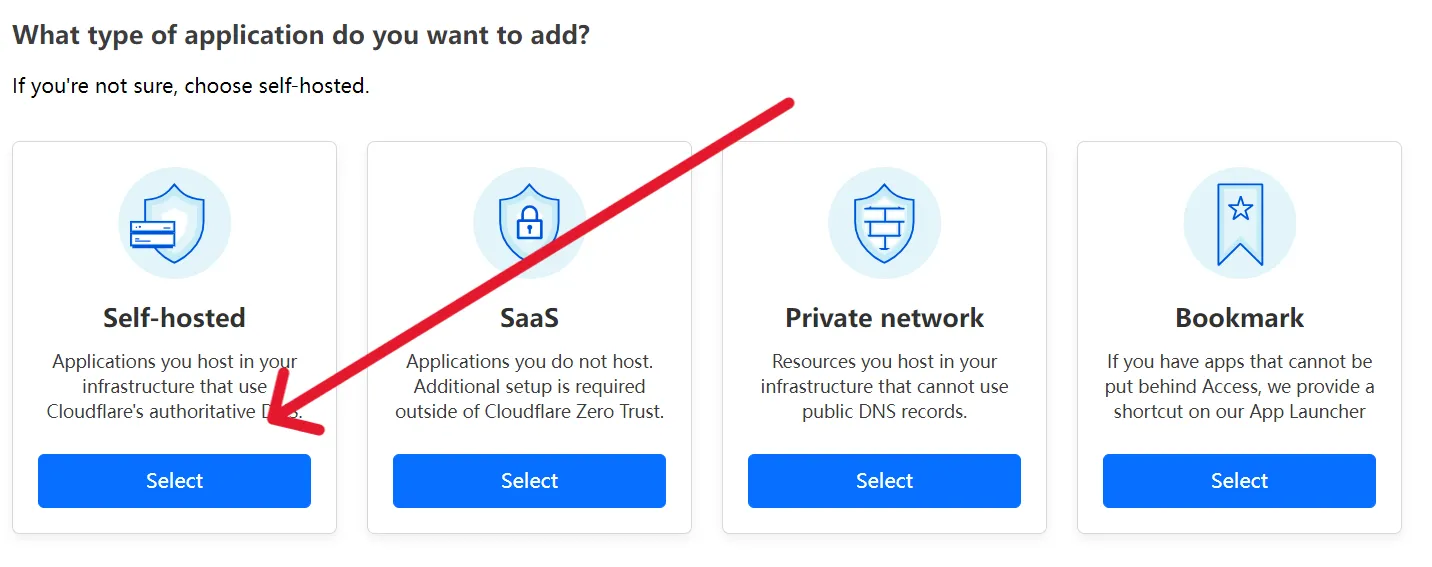
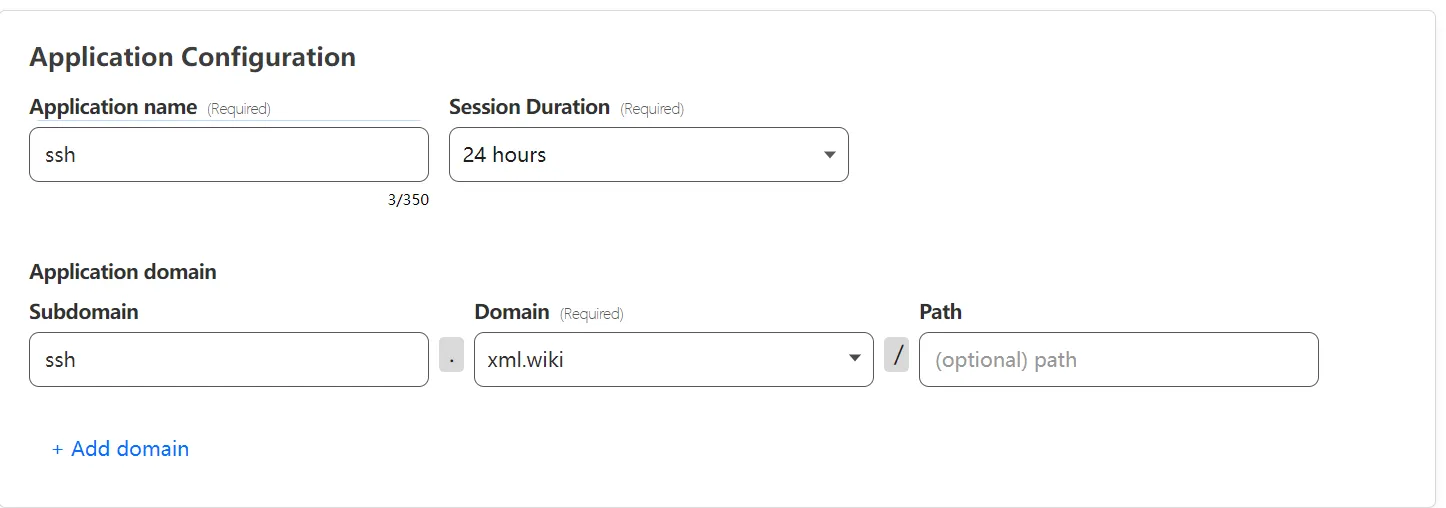
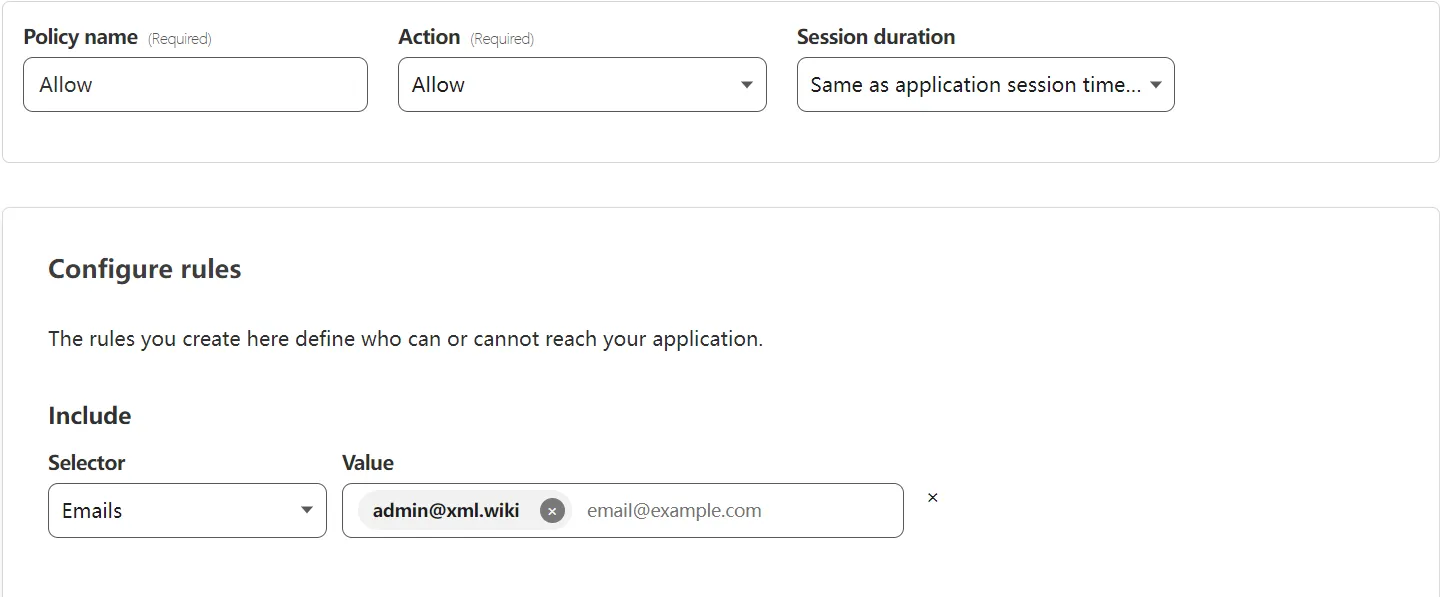
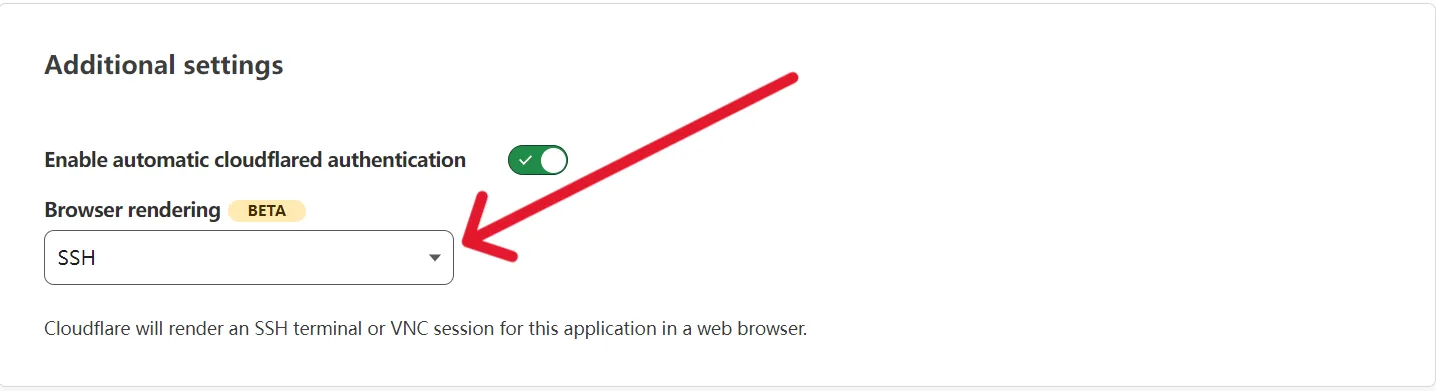
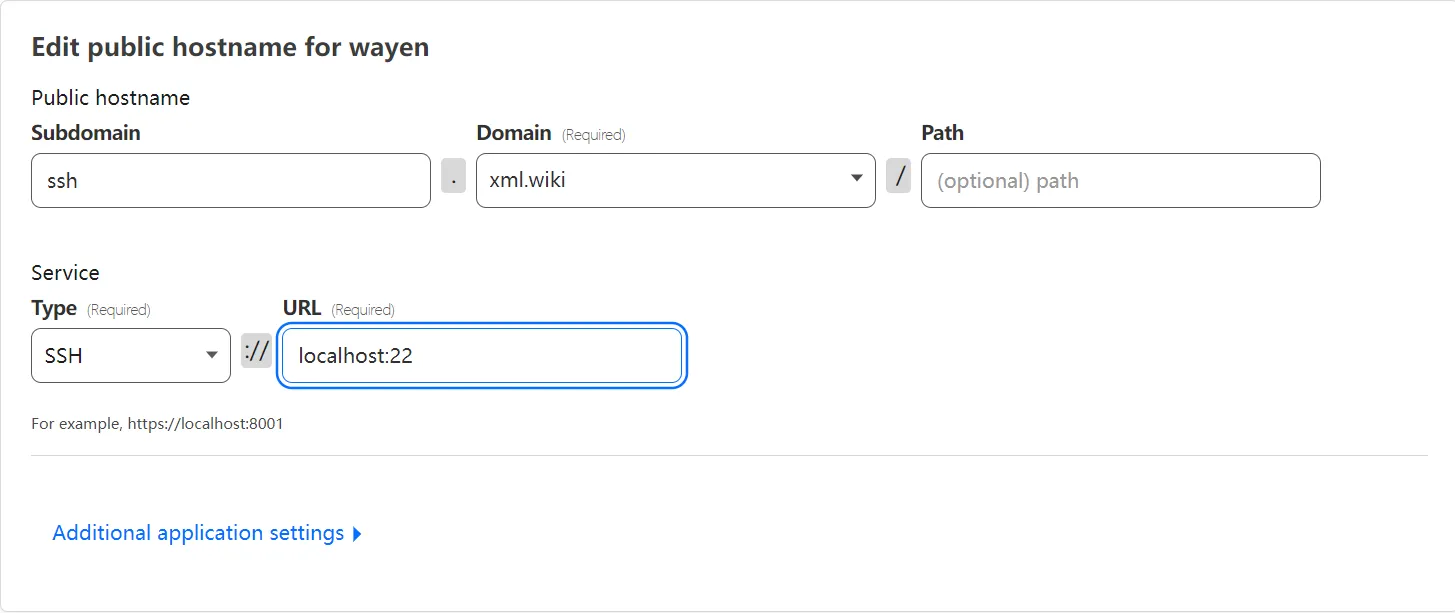
    <content type="html"><![CDATA[<h2 id="说明"><a href="#说明" class="headerlink" title="说明"></a>说明</h2><p>搭建Cloudflare_tunnel完成后似乎可以内网穿透了，但如果还要使用远程SSH仍需要几个步骤，本教程将介绍通过Cloudflare_tunnel实现远程SSH三种方法。</p><h2 id="搭建Tunnel"><a href="#搭建Tunnel" class="headerlink" title="搭建Tunnel"></a><a href="https://www.xml.wiki/p/53402/">搭建Tunnel</a></h2><p>给自己的SSH控制端也搭建Tunnel，可以使用代理命令<code>&lt;file path&gt;/cloudflared access ssh --hostname ssh.xml.wiki</code>通过SSH工具连接。</p><h2 id="添加认证程序"><a href="#添加认证程序" class="headerlink" title="添加认证程序"></a>添加认证程序</h2><p>首先打开<a href="https://one.dash.cloudflare.com/" rel="external nofollow noreferrer">工作台</a>，点击左侧<code>Access</code>下的<code>Applications</code>创建应用。类型选择<code>Self-hosted</code>。<br><img src="https://img.xml.wiki/blog/09.webp" alt="09"><br>然后本页按照下图填写内容，其他保持默认即可。<br><img src="https://img.xml.wiki/blog/10.webp" alt="10"><br>在添加规则页面，<code>Policy name</code>随便填写，具体的规则可按照下图填写，其他保持默认即可。<br><img src="https://img.xml.wiki/blog/11.webp" alt="11"><br>最后一页请如下图选择SSH，其他保持默认即可。<br><img src="https://img.xml.wiki/blog/12.webp" alt="12"><br>别忘记在Tunnel中的<code>Public Hostname</code>创建SSH规则，之后访问网站进行邮箱验证码登录即可。<br><img src="https://img.xml.wiki/blog/08.webp" alt="08"></p><h2 id="SSH-over-WEB"><a href="#SSH-over-WEB" class="headerlink" title="SSH over WEB"></a>SSH over WEB</h2><p>简单来讲就是使用工具将SSH转为Web，再由Tunnel进行内网穿透。</p><h3 id="ttyd"><a href="#ttyd" class="headerlink" title="ttyd"></a>ttyd</h3><p>下载<a href="https://github.com/tsl0922/ttyd/releases" rel="external nofollow noreferrer">ttyd</a>，默认监听7681端口，可通过参数<code>-p</code>指定。</p><figure class="highlight sh"><table><tr><td class="gutter"><pre><span class="line">1</span><br><span class="line">2</span><br></pre></td><td class="code"><pre><span class="line"><span class="built_in">chmod</span> +x ttyd</span><br><span class="line">./ttyd login</span><br></pre></td></tr></table></figure><h3 id="sshwifty"><a href="#sshwifty" class="headerlink" title="sshwifty"></a>sshwifty</h3><p><a href="https://www.xml.wiki/p/45848/">另见。</a>使用Tunnel可不用配置SSL证书。</p>]]></content>
    
    
    <summary type="html">搭建Cloudflare_tunnel完成后似乎可以内网穿透了，但如果还要使用远程SSH仍需要几个步骤，本教程将介绍通过Cloudflare_tunnel实现远程SSH三种方法。</summary>


    <category term="实用教程" scheme="https://www.xml.wiki/categories/%E5%AE%9E%E7%94%A8%E6%95%99%E7%A8%8B/"/>
    
    
    <category term="Onecloud" scheme="https://www.xml.wiki/tags/Onecloud/"/>
    
    <category term="玩客云" scheme="https://www.xml.wiki/tags/%E7%8E%A9%E5%AE%A2%E4%BA%91/"/>
    
    <category term="Cloudflare" scheme="https://www.xml.wiki/tags/Cloudflare/"/>
    
    <category term="内网穿透" scheme="https://www.xml.wiki/tags/%E5%86%85%E7%BD%91%E7%A9%BF%E9%80%8F/"/>
    
    <category term="远程SSH" scheme="https://www.xml.wiki/tags/%E8%BF%9C%E7%A8%8BSSH/"/>
    
  </entry>
  
  <entry>
    <title>Cloudflare_tunnel内网穿透</title>
    <link href="https://www.xml.wiki/p/53402/"/>
    <id>https://www.xml.wiki/p/53402/</id>
    <published>2023-07-23T12:06:46.000Z</published>
    <updated>2024-01-09T03:14:32.000Z</updated>
    
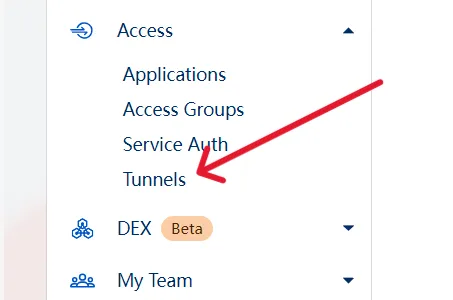
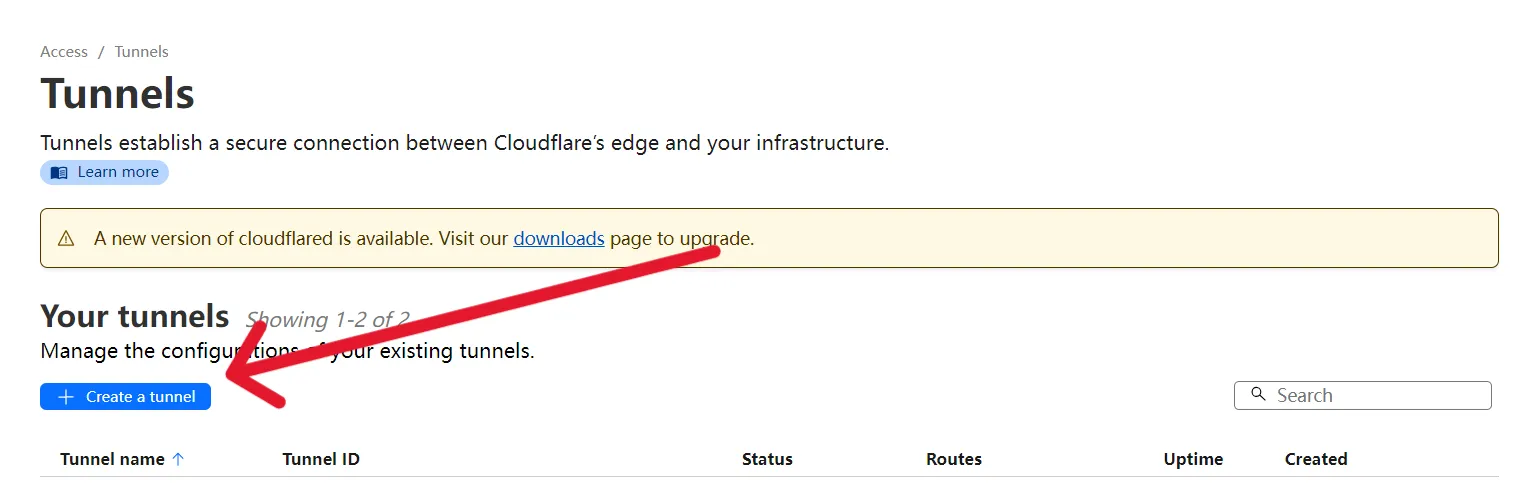
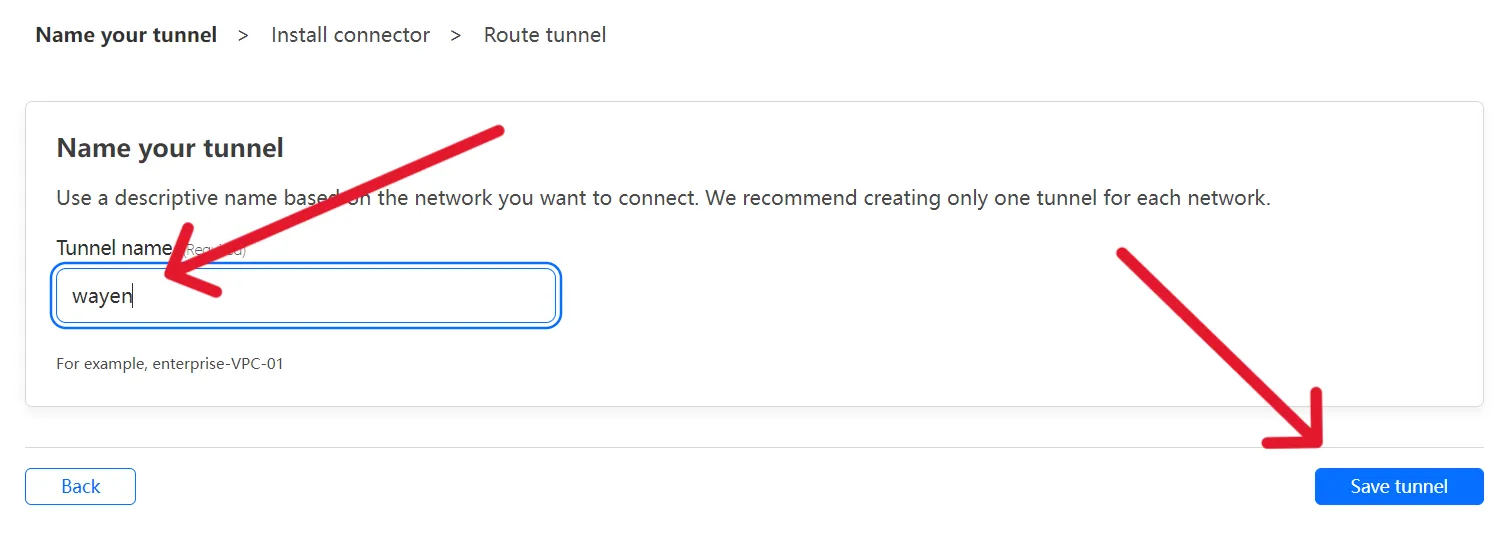
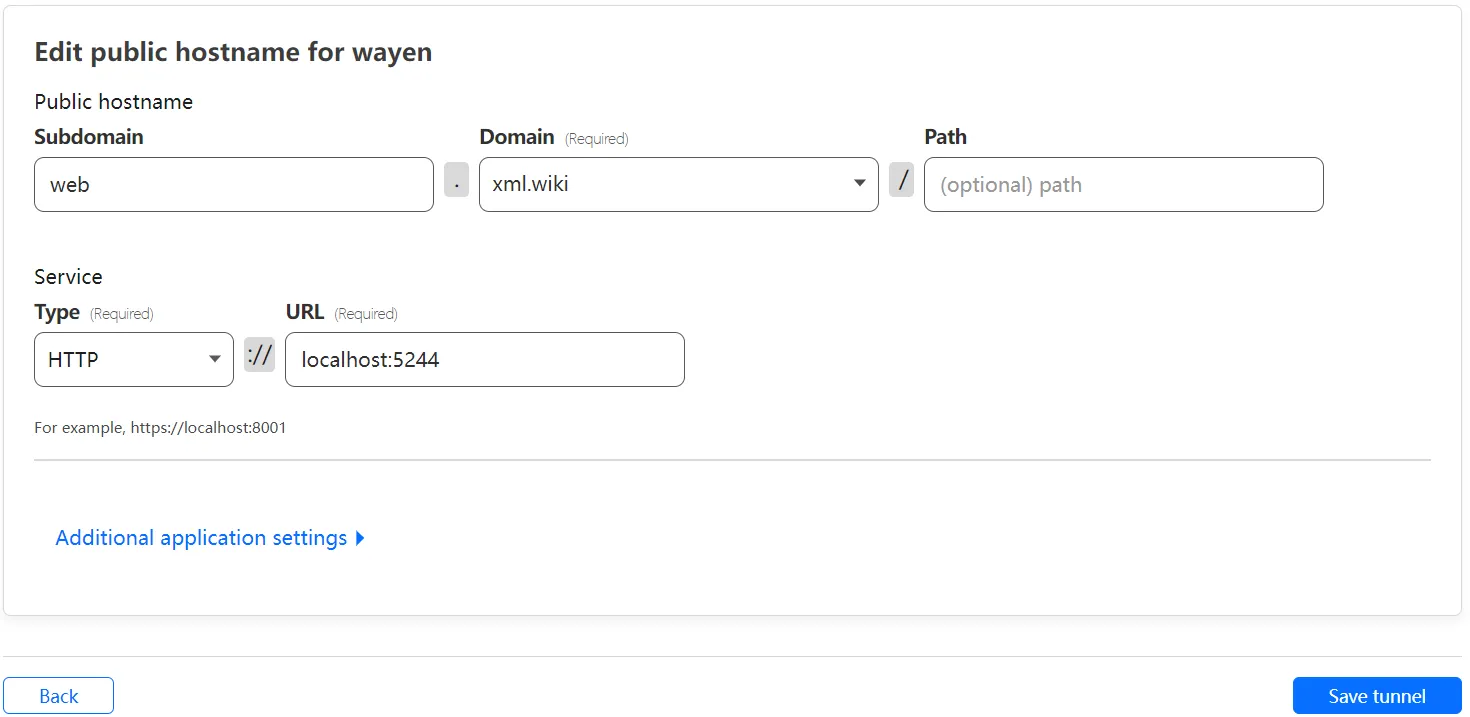
    <content type="html"><![CDATA[<h2 id="说明"><a href="#说明" class="headerlink" title="说明"></a>说明</h2><p>借助Cloudflare_tunnel可以实现访问没有公网的主机服务，也可以安全保护自己<del>代理</del>公网端口，甚至在没有标准端口的Nat_vps上白嫖CDN。不需要花费一分钱的内网穿透，只需你添加一张信用卡即可。</p><h2 id="教程"><a href="#教程" class="headerlink" title="教程"></a>教程</h2><p>首先进入<a href="https://one.dash.cloudflare.com/" rel="external nofollow noreferrer">工作台</a>，任意填写你的团队名称，选择<code>Free Plan</code>添加付款方式即可。<br>然后点击左侧<code>Access</code>下的<code>Tunnels</code>，创建一个Tunnel。<br><img src="https://img.xml.wiki/blog/04.webp" alt="04"><br><img src="https://img.xml.wiki/blog/05.webp" alt="05"><br>接着你可以选择自己的操作系统，以Onecloud为例选择<code>Debian</code>和<code>arm32bit</code>，到页面下方复制左侧的命令到SSH窗口回车即可。下一步输入自己的Tunnel名称，点击保存。<br><img src="https://img.xml.wiki/blog/06.webp" alt="06"><br>之后填写自己想要穿透的内网端口。<code>Subdomain</code>是二级域名前缀，不要填解析过的；<code>Path</code>是网页路径，没有需求留空；<code>Type</code>选择http，<code>URL</code>是localhost+端口号。<br><img src="https://img.xml.wiki/blog/07.webp" alt="07"><br>最后在SSH窗口输入<code>cloudflared tunnel login</code>会输出一个网址，复制到浏览器打开，选择使用的域名授权即可。</p><h2 id="远程SSH"><a href="#远程SSH" class="headerlink" title="远程SSH"></a>远程SSH</h2><p>服务中选择Type时请不要选择SSH，直接使用是无效的，你必须在SSH控制端同样安装Tunnel，或者在工作台新建一个SSH应用登录认证后使用。当然，最简单的办法就是把SSH通过Web分享出来再由Tunnel代理。<br>见<a href="https://www.xml.wiki/p/30698/">教程</a>。</p>]]></content>
    
    
    <summary type="html">不需要花费一分钱，借助Cloudflare_tunnel可以实现访问没有公网的主机服务，也可以安全保护自己~~代理~~公网端口，甚至在没有标准端口的Nat_vps上白嫖CDN。</summary>


    <category term="实用教程" scheme="https://www.xml.wiki/categories/%E5%AE%9E%E7%94%A8%E6%95%99%E7%A8%8B/"/>
    
    
    <category term="Onecloud" scheme="https://www.xml.wiki/tags/Onecloud/"/>
    
    <category term="玩客云" scheme="https://www.xml.wiki/tags/%E7%8E%A9%E5%AE%A2%E4%BA%91/"/>
    
    <category term="Cloudflare" scheme="https://www.xml.wiki/tags/Cloudflare/"/>
    
    <category term="内网穿透" scheme="https://www.xml.wiki/tags/%E5%86%85%E7%BD%91%E7%A9%BF%E9%80%8F/"/>
    
    <category term="远程SSH" scheme="https://www.xml.wiki/tags/%E8%BF%9C%E7%A8%8BSSH/"/>
    
  </entry>
  
  <entry>
    <title>Websocket协议的反向代理配置</title>
    <link href="https://www.xml.wiki/p/2557/"/>
    <id>https://www.xml.wiki/p/2557/</id>
    <published>2023-07-22T03:20:50.000Z</published>
    <updated>2024-01-09T03:15:14.000Z</updated>
    
    <content type="html"><![CDATA[<h2 id="说明"><a href="#说明" class="headerlink" title="说明"></a>说明</h2><p>  Websocket（简称ws）是一种双向通信协议，使用与HTTP协议相同的端口，并通过HTTP_Upgrade机制来进行握手建立连接。而使用HTTP协议的反向代理可能对Websocket不起作用，所以本教程主要介绍基于Caddy2、Nginx、Apache2的Websocket反向代理配置。</p><h2 id="Caddy2"><a href="#Caddy2" class="headerlink" title="Caddy2"></a>Caddy2</h2><figure class="highlight text"><table><tr><td class="gutter"><pre><span class="line">1</span><br><span class="line">2</span><br><span class="line">3</span><br><span class="line">4</span><br><span class="line">5</span><br><span class="line">6</span><br></pre></td><td class="code"><pre><span class="line">xml.wiki &#123;</span><br><span class="line">    tls /root/cert/pem /root/cert/key    #或由Caddy自动申请</span><br><span class="line">    reverse_proxy localhost:7890    #所有代理请求</span><br><span class="line">    reverse_proxy /xml/* localhost:7890    #/xml开头的请求代理</span><br><span class="line">    reverse_proxy /xml&#123;http.request.uri.path&#125; localhost:7890&#123;http.request.uri.path&#125;    #保留原始请求路径的路由</span><br><span class="line">&#125;</span><br></pre></td></tr></table></figure><h2 id="Nginx"><a href="#Nginx" class="headerlink" title="Nginx"></a>Nginx</h2><figure class="highlight text"><table><tr><td class="gutter"><pre><span class="line">1</span><br><span class="line">2</span><br><span class="line">3</span><br><span class="line">4</span><br><span class="line">5</span><br><span class="line">6</span><br><span class="line">7</span><br><span class="line">8</span><br><span class="line">9</span><br><span class="line">10</span><br><span class="line">11</span><br><span class="line">12</span><br><span class="line">13</span><br><span class="line">14</span><br><span class="line">15</span><br><span class="line">16</span><br><span class="line">17</span><br><span class="line">18</span><br></pre></td><td class="code"><pre><span class="line">server &#123;</span><br><span class="line">    listen 443 ssl;</span><br><span class="line">    server_name xml.wiki;</span><br><span class="line">    ssl_certificate /root/cert/pem;</span><br><span class="line">    ssl_certificate_key /root/cert/key;</span><br><span class="line">    ssl_session_timeout  5m;</span><br><span class="line"></span><br><span class="line">    location / &#123;</span><br><span class="line">        proxy_redirect off;</span><br><span class="line">        proxy_pass http://127.0.0.1:7890;</span><br><span class="line">        proxy_http_version 1.1;</span><br><span class="line">        proxy_set_header Upgrade $http_upgrade;</span><br><span class="line">        proxy_set_header Connection &quot;upgrade&quot;;</span><br><span class="line">        proxy_set_header Host $http_host;</span><br><span class="line">        proxy_set_header X-Real-IP $remote_addr;</span><br><span class="line">        proxy_set_header X-Forwarded-For $proxy_add_x_forwarded_for;</span><br><span class="line">    &#125;</span><br><span class="line">&#125;</span><br></pre></td></tr></table></figure><h2 id="Apache2"><a href="#Apache2" class="headerlink" title="Apache2"></a>Apache2</h2><figure class="highlight sh"><table><tr><td class="gutter"><pre><span class="line">1</span><br><span class="line">2</span><br><span class="line">3</span><br><span class="line">4</span><br><span class="line">5</span><br><span class="line">6</span><br><span class="line">7</span><br><span class="line">8</span><br><span class="line">9</span><br><span class="line">10</span><br><span class="line">11</span><br><span class="line">12</span><br><span class="line">13</span><br><span class="line">14</span><br><span class="line">15</span><br><span class="line">16</span><br><span class="line">17</span><br><span class="line">18</span><br><span class="line">19</span><br><span class="line">20</span><br><span class="line">21</span><br><span class="line">22</span><br><span class="line">23</span><br><span class="line">24</span><br><span class="line">25</span><br><span class="line">26</span><br><span class="line">27</span><br><span class="line">28</span><br><span class="line">29</span><br></pre></td><td class="code"><pre><span class="line">sudo a2enmod ssl rewrite proxy proxy_http proxy_wstunnel</span><br><span class="line">nano /etc/apache2/sites-available/000-default.conf</span><br><span class="line"></span><br><span class="line">&lt;IfModule mod_ssl.c&gt;</span><br><span class="line">  &lt;VirtualHost *:443&gt;</span><br><span class="line">    ServerName xml.wiki</span><br><span class="line">    SSLEngine on</span><br><span class="line">    SSLCertificateFile /root/cert/pem</span><br><span class="line">    SSLCertificateKeyFile /root/cert/key</span><br><span class="line">    ProxyRequests off</span><br><span class="line">    ProxyPreserveHost on</span><br><span class="line">    RewriteEngine on</span><br><span class="line">    &lt;Proxy *&gt;</span><br><span class="line">      Order deny,allow</span><br><span class="line">      Allow from all</span><br><span class="line">    &lt;/Proxy&gt;</span><br><span class="line">    <span class="comment">#反向代理http请求</span></span><br><span class="line">    ProxyPass / http://localhost:7890/</span><br><span class="line">    ProxyPassReverse / http://localhost:7890/</span><br><span class="line">    <span class="comment">#反向代理websocket连接</span></span><br><span class="line">    RewriteCond %&#123;HTTP:UPGRADE&#125; ^WebSocket$ [NC]</span><br><span class="line">    RewriteCond %&#123;HTTP:CONNECTION&#125; ^Upgrade$ [NC]</span><br><span class="line">    RewriteRule .* ws://localhost:7890%&#123;REQUEST_URI&#125; [P]</span><br><span class="line">    ErrorLog <span class="variable">$&#123;APACHE_LOG_DIR&#125;</span>/error.log</span><br><span class="line">    CustomLog <span class="variable">$&#123;APACHE_LOG_DIR&#125;</span>/access.log combined</span><br><span class="line"> &lt;/VirtualHost&gt;</span><br><span class="line">&lt;/IfModule&gt;</span><br><span class="line"></span><br><span class="line">systemctl reload apache2</span><br></pre></td></tr></table></figure>]]></content>
    
    
    <summary type="html">Websocket（简称ws）是一种双向通信协议，通过HTTP_Upgrade机制来进行握手建立连接。本教程主要介绍基于Caddy2、Nginx、Apache2的Websocket反向代理配置。</summary>


    <category term="实用教程" scheme="https://www.xml.wiki/categories/%E5%AE%9E%E7%94%A8%E6%95%99%E7%A8%8B/"/>
    
    
    <category term="代理" scheme="https://www.xml.wiki/tags/%E4%BB%A3%E7%90%86/"/>
    
    <category term="websocket" scheme="https://www.xml.wiki/tags/websocket/"/>
    
  </entry>
  
  <entry>
    <title>Onecloud开启B站24H直播</title>
    <link href="https://www.xml.wiki/p/60209/"/>
    <id>https://www.xml.wiki/p/60209/</id>
    <published>2023-07-21T11:04:07.000Z</published>
    <updated>2024-01-09T03:14:52.000Z</updated>
    
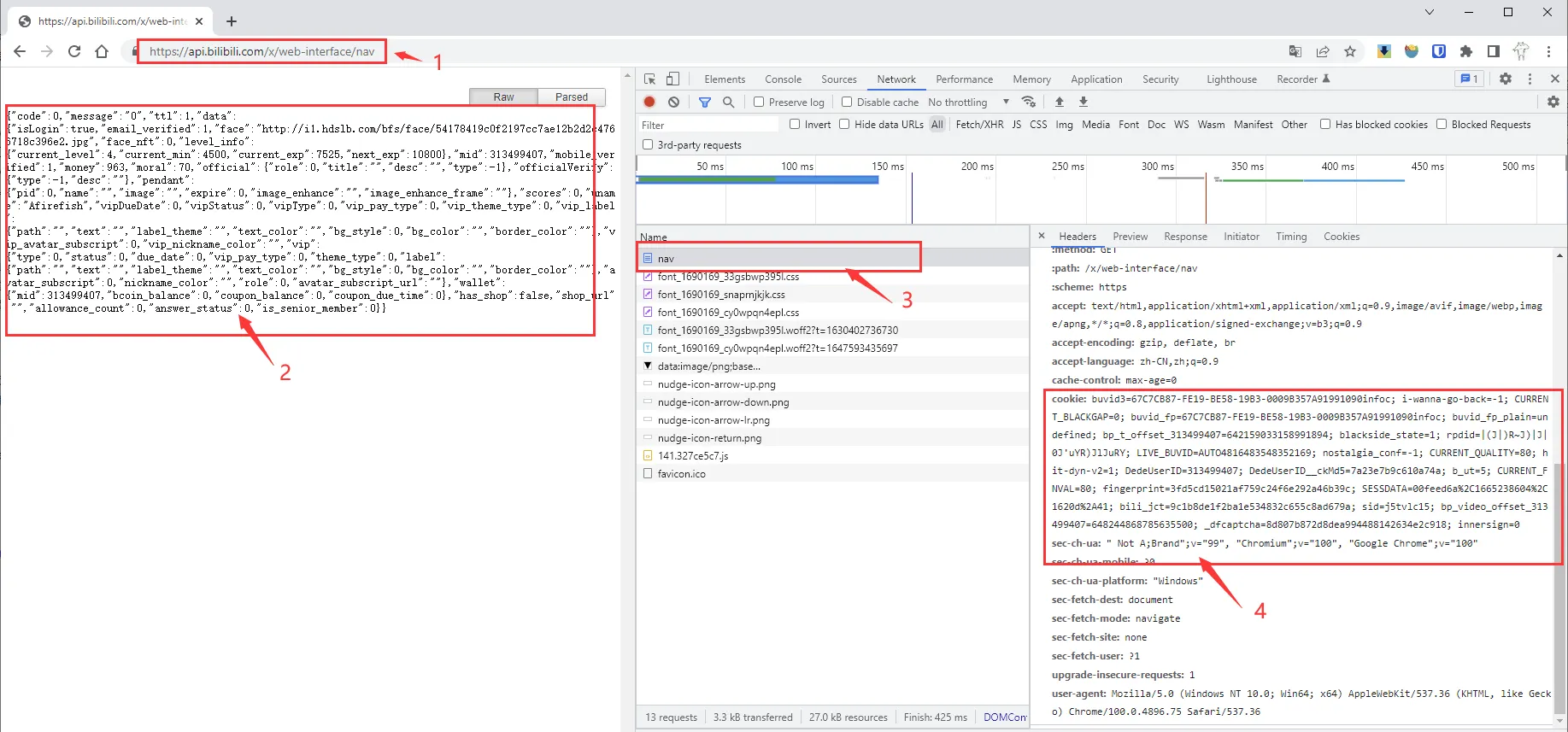
    <content type="html"><![CDATA[<h2 id="说明"><a href="#说明" class="headerlink" title="说明"></a>说明</h2><p>本着不浪费Onecloud性能的原则，写完直播录制也得有直播推流，于是就找到了两款B站24h直播工具，分别是<a href="https://github.com/KimmyXYC/BiliLive-Auto-Streaming" rel="external nofollow noreferrer">BiliLive-Auto-Streaming</a>和<a href="https://github.com/withsalt/BilibiliLiveTools" rel="external nofollow noreferrer">BilibiliLiveTools</a>。两款工具都需要Cookie，分区ID请<a href="https://github.com/withsalt/BilibiliLiveTools/blob/master/docs/%E7%9B%B4%E6%92%AD%E5%88%86%E7%B1%BB.txt" rel="external nofollow noreferrer">查找</a>。</p><h2 id="BiliLive-Auto-Streaming"><a href="#BiliLive-Auto-Streaming" class="headerlink" title="BiliLive-Auto-Streaming"></a>BiliLive-Auto-Streaming</h2><figure class="highlight sh"><table><tr><td class="gutter"><pre><span class="line">1</span><br><span class="line">2</span><br><span class="line">3</span><br><span class="line">4</span><br><span class="line">5</span><br><span class="line">6</span><br><span class="line">7</span><br><span class="line">8</span><br></pre></td><td class="code"><pre><span class="line">wget https://github.com/KimmyXYC/BiliLive-Auto-Streaming/archive/refs/heads/main.zip</span><br><span class="line">unzip main.zip</span><br><span class="line">apt install ffmpeg python3-pip</span><br><span class="line">pip install -r requirements.txt</span><br><span class="line">python3 login.py    <span class="comment">#扫码登录</span></span><br><span class="line">nano config.json    <span class="comment">#填写直播房间号room_id和分类分区area及其他参数</span></span><br><span class="line"><span class="comment">#live_time表示直播时长（秒），0表示播完当前视频后停止；-1表示24h持续直播</span></span><br><span class="line">python3 main.py    <span class="comment">#启动</span></span><br></pre></td></tr></table></figure><h2 id="BilibiliLiveTools"><a href="#BilibiliLiveTools" class="headerlink" title="BilibiliLiveTools"></a>BilibiliLiveTools</h2><p>前往<a href="https://github.com/withsalt/BilibiliLiveTools/releases" rel="external nofollow noreferrer">下载页面</a>下载<strong>BilibiliLiver_Linux_ARM.zip</strong>。</p><figure class="highlight sh"><table><tr><td class="gutter"><pre><span class="line">1</span><br><span class="line">2</span><br><span class="line">3</span><br><span class="line">4</span><br><span class="line">5</span><br><span class="line">6</span><br></pre></td><td class="code"><pre><span class="line">apt install ffmpeg</span><br><span class="line">unzip BilibiliLiver_Linux_ARM.zip</span><br><span class="line"><span class="built_in">chmod</span> +x BilibiliLiver_Linux_ARM</span><br><span class="line">nano cookie.txt    <span class="comment">#见cookie</span></span><br><span class="line">nano appsettings.json</span><br><span class="line">./BilibiliLiver_Linux_ARM    <span class="comment">#启动</span></span><br></pre></td></tr></table></figure><h2 id="Cookie"><a href="#Cookie" class="headerlink" title="Cookie"></a>Cookie</h2><p>前往<a href="https://api.bilibili.com/x/web-interface/nav" rel="external nofollow noreferrer">https://api.bilibili.com/x/web-interface/nav</a><br><img src="https://img.xml.wiki/blog/13.webp" alt="13"></p>]]></content>
    
    
    <summary type="html">本着不浪费Onecloud性能的原则，写完直播录制也得有直播推流，于是就找到了两款B站24h直播工具，分别是BiliLive-Auto-Streaming和BilibiliLiveTools。</summary>


    <category term="实用教程" scheme="https://www.xml.wiki/categories/%E5%AE%9E%E7%94%A8%E6%95%99%E7%A8%8B/"/>
    
    
    <category term="Onecloud" scheme="https://www.xml.wiki/tags/Onecloud/"/>
    
    <category term="玩客云" scheme="https://www.xml.wiki/tags/%E7%8E%A9%E5%AE%A2%E4%BA%91/"/>
    
    <category term="直播" scheme="https://www.xml.wiki/tags/%E7%9B%B4%E6%92%AD/"/>
    
  </entry>
  
  <entry>
    <title>Bililive-go：一键开启直播录制</title>
    <link href="https://www.xml.wiki/p/48409/"/>
    <id>https://www.xml.wiki/p/48409/</id>
    <published>2023-07-21T00:20:58.000Z</published>
    <updated>2024-01-09T03:14:12.000Z</updated>
    
    <content type="html"><![CDATA[<h2 id="说明"><a href="#说明" class="headerlink" title="说明"></a>说明</h2><p>  Bililive-go是一款支持多种直播平台的录制工具，借助它我们很容易就能将自己喜欢的直播录制下来。目前Bililive-go支持的平台有Acfun直播、哔哩哔哩直播、战旗直播、斗鱼直播、虎牙直播、twitch、抖音直播、快手、YY直播、微博直播等，更多内容详见<a href="https://github.com/hr3lxphr6j/bililive-go" rel="external nofollow noreferrer">官方</a>。<br>  <strong>提醒</strong>：在使用<code>ip:8080</code>访问webui添加直播间或更改设置时，务必点击保存否则不生效。bililive-go重启之后监控状态可能会发生变化，请在webui手动开启录制。</p><h2 id="下载安装"><a href="#下载安装" class="headerlink" title="下载安装"></a>下载安装</h2><h3 id="docker安装"><a href="#docker安装" class="headerlink" title="docker安装"></a>docker安装</h3><figure class="highlight sh"><table><tr><td class="gutter"><pre><span class="line">1</span><br><span class="line">2</span><br><span class="line">3</span><br><span class="line">4</span><br><span class="line">5</span><br></pre></td><td class="code"><pre><span class="line">docker run \</span><br><span class="line">--restart=always \</span><br><span class="line">-v ~/Videos:/srv/bililive \</span><br><span class="line">-p 8080:8080 \</span><br><span class="line">-d chigusa/bililive-go</span><br></pre></td></tr></table></figure><p>你也可以指定端口，让bililive-go监听主机80端口<code>-p 80:8080</code>，配置文件为<code>/etc/bililive-go/config.yml</code>，录像输出文件在<code>/srv/bililive</code>。</p><h3 id="手动安装"><a href="#手动安装" class="headerlink" title="手动安装"></a>手动安装</h3><p>  以Onecloud为例，首先需要安装ffmpeg<code>apt install ffmpeg</code>，然后前往<a href="https://github.com/hr3lxphr6j/bililive-go/releases" rel="external nofollow noreferrer">下载</a>页面找到<strong>bililive-linux-arm.tar.gz</strong>并下载到&#x2F;root文件夹。</p><figure class="highlight sh"><table><tr><td class="gutter"><pre><span class="line">1</span><br><span class="line">2</span><br><span class="line">3</span><br><span class="line">4</span><br><span class="line">5</span><br><span class="line">6</span><br><span class="line">7</span><br><span class="line">8</span><br><span class="line">9</span><br><span class="line">10</span><br><span class="line">11</span><br><span class="line">12</span><br><span class="line">13</span><br><span class="line">14</span><br><span class="line">15</span><br><span class="line">16</span><br></pre></td><td class="code"><pre><span class="line">tar -xvf bililive-linux-arm.tar.gz</span><br><span class="line"><span class="built_in">chmod</span> +x bililive-linux-arm</span><br><span class="line">./bililive-linux-arm -c config.yml</span><br><span class="line"><span class="comment">#后台运行</span></span><br><span class="line"><span class="built_in">echo</span> <span class="string">&quot;[Unit]</span></span><br><span class="line"><span class="string">Description=Live Stream Saver</span></span><br><span class="line"><span class="string">Wants=network-online.target</span></span><br><span class="line"><span class="string">After=network-online.target</span></span><br><span class="line"><span class="string"></span></span><br><span class="line"><span class="string">[Service]</span></span><br><span class="line"><span class="string">Type=simple</span></span><br><span class="line"><span class="string">ExecStart=/root/bililive-linux-arm -c /root/config.yml</span></span><br><span class="line"><span class="string">Restart=on-failure</span></span><br><span class="line"><span class="string"></span></span><br><span class="line"><span class="string">[Install]</span></span><br><span class="line"><span class="string">WantedBy=multi-user.target&quot;</span> &gt; /usr/lib/systemd/system/bililive-go.service</span><br></pre></td></tr></table></figure><h2 id="配置参数详解"><a href="#配置参数详解" class="headerlink" title="配置参数详解"></a>配置参数详解</h2><p>  配置文件为<code>config.yml</code>。</p><figure class="highlight text"><table><tr><td class="gutter"><pre><span class="line">1</span><br><span class="line">2</span><br><span class="line">3</span><br><span class="line">4</span><br><span class="line">5</span><br><span class="line">6</span><br><span class="line">7</span><br><span class="line">8</span><br><span class="line">9</span><br><span class="line">10</span><br><span class="line">11</span><br><span class="line">12</span><br><span class="line">13</span><br></pre></td><td class="code"><pre><span class="line">bind: 0.0.0.0:8080    #webui监听地址和端口，请更改</span><br><span class="line">interval: 20    #直播间状态查询间隔秒</span><br><span class="line">out_put_path: ./    #直播文件输出路径</span><br><span class="line">use_native_flv_parser: false    #默认使用ffmpeg录制，录制视频出现花屏可尝试开启</span><br><span class="line">- url: https://***    #直播间地址</span><br><span class="line">is_listening: true    #开启录制</span><br><span class="line">quality: 0    #仅B站启用，默认为0，代表原画PRO(HEVC)优先, 其他数值为原画(AVC)</span><br><span class="line">out_put_tmpl: &quot;&quot;    #输出文件名模板</span><br><span class="line">on_room_name_changed: false    #直播房间名改变时分割录像</span><br><span class="line">max_duration: 0s    #单个视频最大时长，0为不切割录像</span><br><span class="line">cookies: &#123;&#125;    #录制失败时可尝试添加，格式为live.bilibili.com: cookies</span><br><span class="line">convert_to_mp4: false    #录制完成后格式转为mp4</span><br><span class="line">delete_flv_after_convert: false    #转换格式后删除flv</span><br></pre></td></tr></table></figure>]]></content>
    
    
    <summary type="html">Bililive-go是一款支持多种直播平台的录制工具，借助它我们很容易就能将自己喜欢的直播录制下来。</summary>


    <category term="实用教程" scheme="https://www.xml.wiki/categories/%E5%AE%9E%E7%94%A8%E6%95%99%E7%A8%8B/"/>
    
    
    <category term="Onecloud" scheme="https://www.xml.wiki/tags/Onecloud/"/>
    
    <category term="玩客云" scheme="https://www.xml.wiki/tags/%E7%8E%A9%E5%AE%A2%E4%BA%91/"/>
    
    <category term="直播" scheme="https://www.xml.wiki/tags/%E7%9B%B4%E6%92%AD/"/>
    
  </entry>
  
  <entry>
    <title>OnecloudのBT/PT计划</title>
    <link href="https://www.xml.wiki/p/30506/"/>
    <id>https://www.xml.wiki/p/30506/</id>
    <published>2023-07-19T04:45:07.000Z</published>
    <updated>2024-01-09T03:14:46.000Z</updated>
    
    <content type="html"><![CDATA[<h2 id="说明"><a href="#说明" class="headerlink" title="说明"></a>说明</h2><p>  Onecloud1+8G的孱弱配置根本不够看，但是千兆网口用来简单刷个BT&#x2F;PT还有些富余，已经可以满足轻量用户的需求。本教程用到的软件和工具如下：aria2、alist、rclone、samba、7zip、U盘或移动硬盘。aria2用于下载，alist挂载网盘，rclone上传文件到网盘，samba提供smb协议挂载，7zip解压。<br>    推荐在浏览器上安装<strong>Aria2 Explorer</strong>，在手机上安装<strong>AriaNgGUI</strong>来管理和使用BT&#x2F;PT下载，缺点就是不能主动做种。</p><h2 id="下载安装"><a href="#下载安装" class="headerlink" title="下载安装"></a>下载安装</h2><h3 id="aria2"><a href="#aria2" class="headerlink" title="aria2"></a>aria2</h3><p>  aria2使用<a href="https://github.com/P3TERX/aria2.sh" rel="external nofollow noreferrer">P3TERX大佬</a>的完美配置脚本。</p><figure class="highlight sh"><table><tr><td class="gutter"><pre><span class="line">1</span><br><span class="line">2</span><br><span class="line">3</span><br></pre></td><td class="code"><pre><span class="line">apt install wget curl ca-certificates</span><br><span class="line">wget -N git.io/aria2.sh &amp;&amp; <span class="built_in">chmod</span> +x aria2.sh</span><br><span class="line">./aria2.sh    <span class="comment">#有中文目录，选择安装即可</span></span><br></pre></td></tr></table></figure><h3 id="alist"><a href="#alist" class="headerlink" title="alist"></a>alist</h3><p>  alist的一键脚本不适用于Onecloud，所以我们选择手动安装。首先<a href="https://github.com/alist-org/alist/releases" rel="external nofollow noreferrer">下载</a><strong>alist-linux-arm-7.tar.gz</strong>到你需要安装的目录，比如&#x2F;root，然后解压运行添加到后台即可。</p><figure class="highlight sh"><table><tr><td class="gutter"><pre><span class="line">1</span><br><span class="line">2</span><br><span class="line">3</span><br><span class="line">4</span><br></pre></td><td class="code"><pre><span class="line">tar -zxvf alist-linux-arm-7.tar.gz</span><br><span class="line"><span class="built_in">chmod</span> +x alist</span><br><span class="line">./alist server    <span class="comment"># 运行程序</span></span><br><span class="line">./alist admin    <span class="comment"># 获得管理员信息</span></span><br></pre></td></tr></table></figure><figure class="highlight sh"><table><tr><td class="gutter"><pre><span class="line">1</span><br><span class="line">2</span><br><span class="line">3</span><br><span class="line">4</span><br><span class="line">5</span><br><span class="line">6</span><br><span class="line">7</span><br><span class="line">8</span><br><span class="line">9</span><br><span class="line">10</span><br><span class="line">11</span><br><span class="line">12</span><br><span class="line">13</span><br><span class="line">14</span><br></pre></td><td class="code"><pre><span class="line"><span class="built_in">echo</span> <span class="string">&quot;[Unit]</span></span><br><span class="line"><span class="string">Description=alist</span></span><br><span class="line"><span class="string">After=network.target</span></span><br><span class="line"><span class="string"> </span></span><br><span class="line"><span class="string">[Service]</span></span><br><span class="line"><span class="string">Type=simple</span></span><br><span class="line"><span class="string">WorkingDirectory=/root</span></span><br><span class="line"><span class="string">ExecStart=/root/alist server</span></span><br><span class="line"><span class="string">Restart=on-failure</span></span><br><span class="line"><span class="string"> </span></span><br><span class="line"><span class="string">[Install]</span></span><br><span class="line"><span class="string">WantedBy=multi-user.target&quot;</span> &gt;&gt; /usr/lib/systemd/system/alist.service</span><br><span class="line"><span class="comment">#后台运行</span></span><br><span class="line">systemctl daemon-reload &amp;&amp; systemctl <span class="built_in">enable</span> alist &amp;&amp; systemctl start alist</span><br></pre></td></tr></table></figure><h3 id="rclone-and-7zip"><a href="#rclone-and-7zip" class="headerlink" title="rclone and 7zip"></a>rclone and 7zip</h3><p>  rclone的安装请执行<code>curl https://rclone.org/install.sh | sudo bash</code>，在下载BT&#x2F;PT时有可能遇到压缩包，你可以下载7zip<code>apt install p7zip-full p7zip-rar</code>。解压命令<code>7z x test.z删除ip -r -o/root/test</code>（部分压缩文件可能会乱码）。</p><h2 id="联合配置"><a href="#联合配置" class="headerlink" title="联合配置"></a>联合配置</h2><h3 id="挂载磁盘"><a href="#挂载磁盘" class="headerlink" title="挂载磁盘"></a>挂载磁盘</h3><p>  <code>fdisk -l</code>根据容量查看要挂载的磁盘目录，如&#x2F;dev&#x2F;sda1，<code>sudo mkfs.ext4 /dev/sda1</code>格式化磁盘，<code>sudo mount /dev/sda1 /mnt</code>挂载即可。关于开机自动挂载：<code>blkid</code>查看对应的UUID，<code>nano /etc/fstab</code>最后一行添加<code>UUID=****** /mnt ext4 defaults 0 1</code>。</p><h3 id="下载与自动上传"><a href="#下载与自动上传" class="headerlink" title="下载与自动上传"></a>下载与自动上传</h3><p>  alist添加网盘请参考<a href="https://alist.nn.ci/zh/guide/" rel="external nofollow noreferrer">官方</a>。rclone挂载alist教程如下：<br><code>rclone config</code>然后输入<code>n</code>取名如wd，输入WebDav对应的数字如46，输入alist网盘链接<code>http://0.0.0.0:5244/dav</code>，输入other对应的数字5，输入用户名-输入y-输入密码（密码不会显示），之后一直回车。<br>  下载BT&#x2F;PT后自动上传需要配置aria2，主要需要修改的内容如下：</p><figure class="highlight sh"><table><tr><td class="gutter"><pre><span class="line">1</span><br><span class="line">2</span><br><span class="line">3</span><br><span class="line">4</span><br><span class="line">5</span><br><span class="line">6</span><br><span class="line">7</span><br><span class="line">8</span><br><span class="line">9</span><br><span class="line">10</span><br><span class="line">11</span><br><span class="line">12</span><br><span class="line">13</span><br><span class="line">14</span><br></pre></td><td class="code"><pre><span class="line">nano /root/.aria2c/aria2.conf</span><br><span class="line"><span class="built_in">dir</span>=/mnt    <span class="comment">#下载目录</span></span><br><span class="line">max-overall-upload-limit=0    <span class="comment">#BT/PT最大上传速度</span></span><br><span class="line">seed-ratio=1.0 seed-time=0    <span class="comment">#分享率和做种时间</span></span><br><span class="line">最重要的是客户端伪装注释掉上面的user-agent，然后添加如下内容：</span><br><span class="line">user-agent=Transmission/2.94</span><br><span class="line">peer-agent=Transmission/2.94</span><br><span class="line">peer-id-prefix=-TR2940-</span><br><span class="line">注释掉on-download-stop</span><br><span class="line">修改on-download-complete的内容为/root/.aria2c/upload.sh</span><br><span class="line"></span><br><span class="line">nano /root/.aria2c/script.conf</span><br><span class="line">drive-name=wd    <span class="comment">#rclone挂载的网盘名</span></span><br><span class="line">drive-dir=/onedrive/test    <span class="comment">#alist挂载的网盘目录，即上传到的文件夹</span></span><br></pre></td></tr></table></figure><h3 id="samba挂载"><a href="#samba挂载" class="headerlink" title="samba挂载"></a>samba挂载</h3><figure class="highlight sh"><table><tr><td class="gutter"><pre><span class="line">1</span><br><span class="line">2</span><br><span class="line">3</span><br><span class="line">4</span><br><span class="line">5</span><br><span class="line">6</span><br><span class="line">7</span><br><span class="line">8</span><br><span class="line">9</span><br><span class="line">10</span><br><span class="line">11</span><br><span class="line">12</span><br><span class="line">13</span><br></pre></td><td class="code"><pre><span class="line">apt install samba</span><br><span class="line">nano /etc/samba/smb.conf</span><br><span class="line">在最后面添加如下代码：</span><br><span class="line">[xml]    <span class="comment">#共享到局域网后会显示的名字</span></span><br><span class="line">comment = xml.wiki   <span class="comment">#备注信息</span></span><br><span class="line">path = /mnt   <span class="comment">#共享的文件夹路径</span></span><br><span class="line">writable = <span class="built_in">yes</span>    <span class="comment">#可以通过局域网上传文件</span></span><br><span class="line">create mask= 0755    <span class="comment">#上传的文件权限也可以改成0777</span></span><br><span class="line">directory mask=0775    <span class="comment">#同上，目录权限</span></span><br><span class="line">之后添加密码并重启</span><br><span class="line"><span class="built_in">touch</span> /etc/samba/smbpasswd</span><br><span class="line">smbpasswd -a root</span><br><span class="line">service smbd restart</span><br></pre></td></tr></table></figure>]]></content>
    
    
    <summary type="html">Onecloud的千兆网口用来简单刷个BT/PT绰绰有余，已经可以满足轻量用户的需求。本教程用到的软件和工具如下：aria2、alist、rclone、samba、7zip、U盘或移动硬盘。aria2用于下载，alist挂载网盘，rclone上传文件到网盘，samba提供smb协议挂载，7zip解压。推荐在浏览器上安装**Aria2 Explorer**，在手机上安装**AriaNgGUI**来管理和使用BT/PT下载，缺点就是不能主动做种。</summary>


    <category term="实用教程" scheme="https://www.xml.wiki/categories/%E5%AE%9E%E7%94%A8%E6%95%99%E7%A8%8B/"/>
    
    
    <category term="Onecloud" scheme="https://www.xml.wiki/tags/Onecloud/"/>
    
    <category term="玩客云" scheme="https://www.xml.wiki/tags/%E7%8E%A9%E5%AE%A2%E4%BA%91/"/>
    
    <category term="BT/PT" scheme="https://www.xml.wiki/tags/BT-PT/"/>
    
  </entry>
  
  <entry>
    <title>网页代理工具</title>
    <link href="https://www.xml.wiki/p/59637/"/>
    <id>https://www.xml.wiki/p/59637/</id>
    <published>2023-07-17T12:57:19.000Z</published>
    <updated>2024-01-08T22:56:42.000Z</updated>
    
    <content type="html"><![CDATA[<h2 id="说明"><a href="#说明" class="headerlink" title="说明"></a>说明</h2><p>  网页代理是通过代理服务器来访问网页，提供了隐私保护、解除地理限制等诸多功能，像浏览普通网页一样<del>方便</del>。提供网页代理的工具有很多，当然弃坑的更多，本教程介绍其中一种——<a href="https://github.com/Hideipnetwork" rel="external nofollow noreferrer">HNet</a>的搭建。<br>  Demo: <a href="https://web.xml.wiki/">web.xml.wiki</a></p><h2 id="正文"><a href="#正文" class="headerlink" title="正文"></a>正文</h2><h3 id="下载安装"><a href="#下载安装" class="headerlink" title="下载安装"></a>下载安装</h3><figure class="highlight sh"><table><tr><td class="gutter"><pre><span class="line">1</span><br></pre></td><td class="code"><pre><span class="line">wget https://github.com/Hideipnetwork/hideipnetwork-web/archive/refs/heads/v3.zip</span><br></pre></td></tr></table></figure><p>下载之后使用<code>unzip *zip</code>解压，然后进入文件夹。<br>另外文件夹内<code>nano .env</code>可以修改运行端口。</p><figure class="highlight sh"><table><tr><td class="gutter"><pre><span class="line">1</span><br><span class="line">2</span><br><span class="line">3</span><br><span class="line">4</span><br><span class="line">5</span><br></pre></td><td class="code"><pre><span class="line">apt install npm</span><br><span class="line">npm install</span><br><span class="line">npm run start</span><br><span class="line">npm i pm2 -g &amp;&amp; pm2 start index.mjs --name xml</span><br><span class="line">pm2 startup    <span class="comment">#开机自启</span></span><br></pre></td></tr></table></figure><h3 id="反向代理"><a href="#反向代理" class="headerlink" title="反向代理"></a>反向代理</h3><p>  HNet不支持IP+端口运行，即使访问成功也不能使用，那么就需要使用反向代理添加域名。</p><figure class="highlight sh"><table><tr><td class="gutter"><pre><span class="line">1</span><br><span class="line">2</span><br><span class="line">3</span><br><span class="line">4</span><br><span class="line">5</span><br></pre></td><td class="code"><pre><span class="line">apt install caddy</span><br><span class="line"><span class="built_in">echo</span> <span class="string">&quot;domain.com &#123;</span></span><br><span class="line"><span class="string">    reverse_proxy 127.0.0.1:56559</span></span><br><span class="line"><span class="string">&#125;&quot;</span> &gt;&gt; /etc/caddy/Caddyfile</span><br><span class="line">systemctl start caddy</span><br></pre></td></tr></table></figure><h2 id="可以忽略"><a href="#可以忽略" class="headerlink" title="可以忽略"></a>可以忽略</h2><h3 id="socks5代理"><a href="#socks5代理" class="headerlink" title="socks5代理"></a>socks5代理</h3><p>  HNet可以使用socks5代理，文件夹内<code>nano .env</code>修改<strong>MODO &#x3D; “socks5”</strong>,之后修改&#x2F;proxy&#x2F;socks5.txt内容为<del>user:password@</del>ip:port</p><h3 id="页面美化"><a href="#页面美化" class="headerlink" title="页面美化"></a>页面美化</h3><p>  自行进入public文件夹修改即可。</p>]]></content>
    
    
    <summary type="html">网页代理是指通过代理服务器来访问网页，本教程介绍HNet(Hideipnetwork)的搭建。演示站 web.xml.wiki</summary>


    <category term="实用教程" scheme="https://www.xml.wiki/categories/%E5%AE%9E%E7%94%A8%E6%95%99%E7%A8%8B/"/>
    
    
    <category term="代理" scheme="https://www.xml.wiki/tags/%E4%BB%A3%E7%90%86/"/>
    
    <category term="HNet" scheme="https://www.xml.wiki/tags/HNet/"/>
    
  </entry>
  
  <entry>
    <title>Onecloud作为旁路由实现代理</title>
    <link href="https://www.xml.wiki/p/54567/"/>
    <id>https://www.xml.wiki/p/54567/</id>
    <published>2023-07-05T03:41:25.000Z</published>
    <updated>2024-01-09T03:44:00.000Z</updated>
    
    <content type="html"><![CDATA[<h2 id="说明"><a href="#说明" class="headerlink" title="说明"></a>说明</h2><p>  Onecloud只有单网口，作为旁路由实现代理时有些设备是无法工作的，比如kindle和switch上的youtube。然而dae解决了这个问题，不再使用代理ip和端口，所以我用它替换掉了v2raya。其他内容请参照<a href="https://github.com/daeuniverse/dae/blob/main/docs/zh/how-it-works.md" rel="external nofollow noreferrer">how_it_works</a>。dae支持的代理有http(s), socks, ss, ssr, vmess, vless, trojan, tuic(v5), naiveproxy。</p><h2 id="准备"><a href="#准备" class="headerlink" title="准备"></a>准备</h2><h3 id="设置静态IP"><a href="#设置静态IP" class="headerlink" title="设置静态IP"></a>设置静态IP</h3><figure class="highlight sh"><table><tr><td class="gutter"><pre><span class="line">1</span><br></pre></td><td class="code"><pre><span class="line">nmtui</span><br></pre></td></tr></table></figure><p><img src="https://img.xml.wiki/blog/01.webp" alt="01"></p><h3 id="升级内核"><a href="#升级内核" class="headerlink" title="升级内核*"></a>升级<a href="https://github.com/daeuniverse/armbian-btf-kernel/releases" rel="external nofollow noreferrer">内核</a><font color=red>*</font></h3><p>无视报错，重启即可。</p><figure class="highlight sh"><table><tr><td class="gutter"><pre><span class="line">1</span><br><span class="line">2</span><br><span class="line">3</span><br></pre></td><td class="code"><pre><span class="line"><span class="built_in">uname</span> -r    <span class="comment">#查看内核版本号，并下载对应的内核。</span></span><br><span class="line">tar -xvf kernel*tar    <span class="comment">#解压</span></span><br><span class="line">dpkg -i linux-*.deb    <span class="comment">#安装</span></span><br></pre></td></tr></table></figure><h2 id="安装"><a href="#安装" class="headerlink" title="安装"></a>安装</h2><h3 id="下载代理程序daed"><a href="#下载代理程序daed" class="headerlink" title="下载代理程序daed"></a>下载代理程序daed</h3><p>  daed比dae多个操作面板，<a href="https://github.com/daeuniverse/daed/releases" rel="external nofollow noreferrer">下载</a><strong>installer-daed-linux-armv7.deb</strong>后，直接<code>dpkg -i *deb</code>安装即可，<code>systemctl start daed</code>为启动命令。</p><h2 id="使用"><a href="#使用" class="headerlink" title="使用"></a>使用</h2><p>  浏览器输入<strong>IP:2023</strong>，如<a href="http://192.168.2.41:2023/" rel="external nofollow noreferrer">http://192.168.2.41:2023</a><br>  接着添加<strong>节点</strong>信息，点击节点<strong>标签</strong>拖动到<strong>群组</strong>后，点击右上角<strong>运行开关</strong>即可。修改配置后请点击右上角多出的重载按钮，否则不生效。<br>  <img src="https://img.xml.wiki/blog/02.webp" alt="02"><br>  局域网使用时需要绑定<strong>global</strong>中的LAN接口并设置静态ip，网关路由和DNS均要指向Onecloud的IP地址。<strong>路由</strong>参数请参照<a href="https://github.com/daeuniverse/dae/blob/main/docs/zh/configuration/routing.md" rel="external nofollow noreferrer">routing</a>，比如想要BT软件直连需添加<code>pname(aria2c) -&gt; direct</code>。<br>  <img src="https://img.xml.wiki/blog/03.webp" alt="03"></p>]]></content>
    
    
    <summary type="html">dae是一个强大而且简单的代理工具，支持http(s), socks, ss, ssr, vmess, vless, trojan, tuic(v5), naiveproxy等协议，我们可以使用Onecloud来部署它。</summary>


    <category term="实用教程" scheme="https://www.xml.wiki/categories/%E5%AE%9E%E7%94%A8%E6%95%99%E7%A8%8B/"/>
    
    
    <category term="Onecloud" scheme="https://www.xml.wiki/tags/Onecloud/"/>
    
    <category term="玩客云" scheme="https://www.xml.wiki/tags/%E7%8E%A9%E5%AE%A2%E4%BA%91/"/>
    
    <category term="代理" scheme="https://www.xml.wiki/tags/%E4%BB%A3%E7%90%86/"/>
    
    <category term="dae" scheme="https://www.xml.wiki/tags/dae/"/>
    
  </entry>
  
</feed>